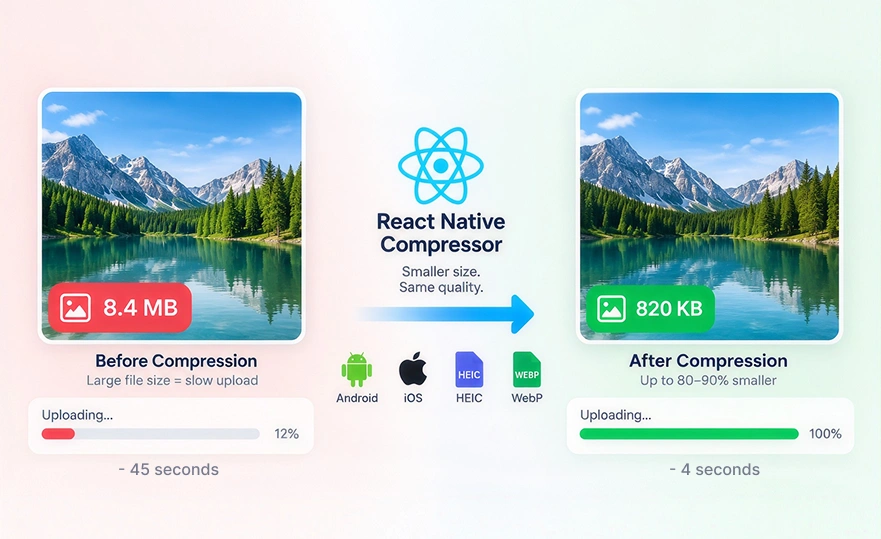
React Native Compressor shrinks images by 80 to 90 percent before upload in a React Native app. It supports Android, iOS, HEIC, and WebP through one simple compress function. This makes it the most stable pick for apps handling large photos or media uploads.
What makes photo uploads so slow in a React Native app?
We show you exactly how React Native Compressor fixes that, with real code and real numbers.
By the end, your React Native app will upload images faster without losing quality.
Why Your React Native App Needs React Native Compressor
Large images are one of the biggest reasons apps feel slow and heavy.
Without React Native image compression, your users upload files that are too large for mobile networks, causing delays and frustration.
- The real problem: Slow uploads, API timeouts, and high mobile data usage occur when uncompressed images go directly to your server.
- Uncompressed images break user experience: Users experience long loading screens, failed uploads, and even app crashes if the image size is too large.
- Image size vs upload time: Larger images take more seconds to travel across the network. Even a 5 MB image can slow down your API, especially on 4G or poor WiFi.
- Why client-side compression is important: Developers must compress before upload so the server receives lightweight images instantly, improving speed and reducing costs for storage and bandwidth.
How React Native Compressor Improves App Performance
Using React Native image optimization techniques can drastically improve the performance of any app.
- Compression speeds up uploads: When you reduce image size in React Native, the upload request becomes lighter and reaches the server faster, often 3x to 10x quicker.
- Real examples: A 4.7 MB image can be compressed to 420 KB, reducing upload time from 6 seconds to less than 1 second.
- CPU vs quality trade-off explained simply: React Native compresses images on the device. A small CPU cost creates a huge performance gain while keeping quality nearly the same.
- Boost conversions in eCommerce & social apps: Faster uploads mean happier users. Compressing product photos or profile images increases conversions and prevents drop-offs.
React Native Compressor vs Other Compression Libraries
React Native offers multiple options to compress images, but not all libraries perform well across platforms.
- Comparing top libraries: react-native-compressor, react-native-image-resizer, and expo-image-manipulator, each has its own pros and cons. Some focus on resizing, while others offer full compression capabilities.
- Why react-native-compressor is the most stable: It supports Android, iOS, video compression, HEIC, WebP, and delivers the best image compression method with fewer crashes.
- Preferred by developers: React Native developers rely on react-native-compressor for large-file uploads because it offers the fastest performance, best stability, and the highest quality output.
Step-by-Step: Using React Native Compressor in Your App
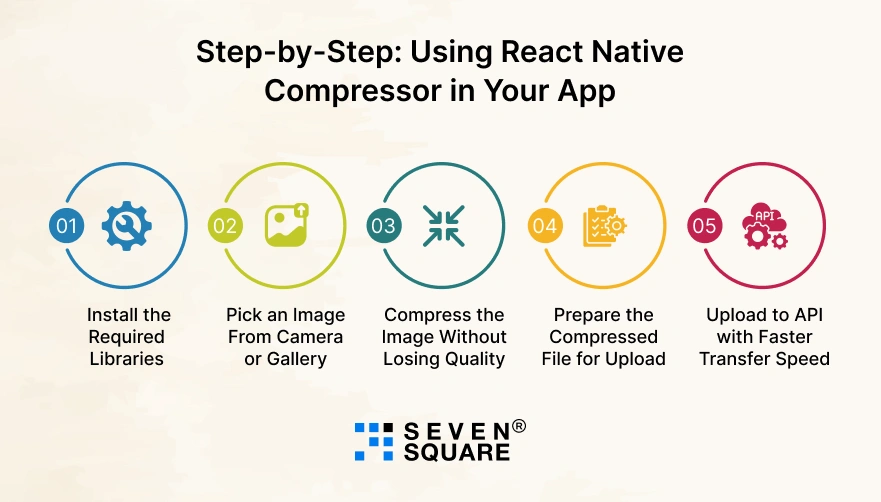
Compressing images before upload in React Native is one of the easiest ways to speed up your app and deliver smoother uploads.
Follow this simple guide to implement image compression using the most stable library: react-native-compressor.
Step 1: Install the Required Libraries
To compress images before upload in React Native, first install the compression and picker libraries.
npm install react-native-compressor react-native-image-picker
Then install pods:
cd ios && pod install && cd ..
Why these libraries?
- react-native-compressor: Fastest, most stable image compression
- react-native-image-picker: Allows picking images from camera or gallery
Step 2: Pick an Image From Camera or Gallery
Use a simple function to let users choose an image.
                import {launchImageLibrary} from 'react-native-image-picker';

                const pickImage = async () => {
                const result = await launchImageLibrary({
                    mediaType: 'photo',
                    quality: 1,
                });

                if (result.didCancel) return;
                if (!result.assets || result.assets.length === 0) return;

                const image = result.assets[0];

                console.log("📸 Original Image:", image.uri, "Size:", image.fileSize / 1024, "KB");

                return image;
                };
Best practice: Always ask for permission on iOS & Android before opening the camera or gallery.
Step 3: Compress the Image Without Losing Quality
Now compress the selected image using compress from react-native-compressor.
                import {Image} from 'react-native-compressor';

                const compressImage = async (imageUri) => {
                const compressedImage = await Image.compress(imageUri, {
                    compressionMethod: 'auto',
                    maxWidth: 1080,
                    quality: 0.8,
                });

                console.log("🗜️ Compressed Image URI:", compressedImage);

                return compressedImage;
                };
Why these settings?
- auto = smart compression.
- maxWidth 1080 = best balance for quality + performance.
- quality 0.8 = compress without visible quality loss.
Step 4: Prepare the Compressed File for Upload
Convert the compressed file into a format your API understands.
                const prepareFileForUpload = (compressedUri) => {
                const file = {
                    uri: compressedUri,
                    type: 'image/jpeg',
                    name: 'compressed_image.jpg',
                };

                console.log("📦 Final File Ready for Upload:", file);

                return file;
                };
Best practice: Always set a proper MIME type and filename.
Step 5: Upload to API with Faster Transfer Speed
Finally, upload the compressed file to your server.
                const uploadCompressedImage = async (file) => {
                const formData = new FormData();
                formData.append('file', file);

                const response = await fetch("https://your-api.com/upload", {
                    method: "POST",
                    body: formData,
                    headers: {
                    "Content-Type": "multipart/form-data",
                    },
                });

                const data = await response.json();

                console.log("🚀 Upload Response:", data);

                return data;
                };
Because the image is now 80 to 90% smaller, upload time becomes significantly faster, and API timeouts reduce drastically.
Full Code: React Native Compressor Upload Flow
Here is the complete file that you can copy-paste in your app.
Full React Native Code
                import React, {useState} from 'react';
                import {View, Text, Button, Image as RNImage, StyleSheet} from 'react-native';
                import {launchImageLibrary} from 'react-native-image-picker';
                import {Image as Compressor} from 'react-native-compressor';

                export default function ImageCompressionScreen() {
                const [originalUri, setOriginalUri] = useState(null);
                const [compressedUri, setCompressedUri] = useState(null);

                // Step 1: Pick Image
                const pickImage = async () => {
                    const result = await launchImageLibrary({mediaType: 'photo', quality: 1});

                    if (result.didCancel) return;
                    const image = result.assets[0];

                    setOriginalUri(image.uri);

                    console.log("📸 Original:", image.uri, image.fileSize / 1024, "KB");

                    compressImage(image.uri);
                };

                // Step 2: Compress Image
                const compressImage = async (uri) => {
                    const compressed = await Compressor.compress(uri, {
                    compressionMethod: "auto",
                    quality: 0.8,
                    maxWidth: 1080,
                    });

                    setCompressedUri(compressed);

                    console.log("🗜️ Compressed:", compressed);
                };

                // Step 3: Prepare File
                const prepareFile = (uri) => {
                    return {
                    uri,
                    type: "image/jpeg",
                    name: "compressed_image.jpg",
                    };
                };

                // Step 4: Upload
                const uploadImage = async () => {
                    const file = prepareFile(compressedUri);

                    const formData = new FormData();
                    formData.append("file", file);

                    const res = await fetch("https://your-api.com/upload", {
                    method: "POST",
                    body: formData,
                    headers: {"Content-Type": "multipart/form-data"},
                    });

                    const data = await res.json();
                    console.log("🚀 Upload Response:", data);
                };

                return (
                    <View style={styles.container}>
                    <Button title="Pick Image" onPress={pickImage} />

                    {originalUri && <RNImage source={{uri: originalUri}} style={styles.image} />}
                    {compressedUri && <RNImage source={{uri: compressedUri}} style={styles.image} />}

                    {compressedUri && <Button title="Upload Compressed Image" onPress={uploadImage} />}
                    </View>
                );
                }

                const styles = StyleSheet.create({
                container: {padding: 20},
                image: {width: 200, height: 200, marginTop: 20},
                });
Recommended Folder Structure
/src
/components
/screens
ImageCompressionScreen.js
/utils
upload.js
compression.js
Here’s the Complete GitHub Code for Image Compression Tool in React Native.
How to Keep Image Quality High With React Native Compressor
You may think that compression will ruin image quality but with the right settings, you can compress without losing quality in React Native.
- Quality parameters explained: Most libraries allow you to choose between 0 to 1 quality scales. A value between 0.7 to 0.8 preserves clarity while shrinking file size significantly.
- Resizing vs compression: Resizing only changes dimensions. Compression reduces the file weight while maintaining the resolution. A combination of both gives the best results.
- Safe compression levels:
- Profile photos: Quality 0.7
- Product images: Quality 0.8
- Documents/scanned files: Quality 0.9 for readability
How Much Faster Does Your App Become After React Native Compressor
Here’s a simple test that shows how much image compression improves performance.
- Test results (before & after):
- Original image: 5.2 MB → Upload time: 7.1 sec
- Compressed image: 480 KB → Upload time: 0.9 sec
- MB-size comparison: Compression reduces file size by 80–90%, depending on the quality setting.
- Upload-time comparison: In many apps, upload time drops from 6–8 seconds to under 1 second.
- Data savings: A user uploading 20 images a day saves around 100–200 MB of data, improving customer satisfaction.
Why We’re the Right Team to Build Your React Native App?
Our team understands how important React Native image compression, performance optimization, and smooth user experience are for modern businesses.
- We build high-performance React Native apps that handle large photos, videos, and media-heavy workflows.
- We use the best image compression methods to ensure faster uploads and low data usage.
- Proven experience in image-heavy apps like eCommerce, delivery, social media, and professional tools.
- Expert team in React Native upload optimization, API performance, caching, offline-first architecture & more.
Want a High-Performing React Native App? Contact Us Now!
Want a React Native App That Uploads Images 10x Faster?
Image compression is the simplest and most effective way to improve upload speed in React Native.
By compressing images before upload, you reduce file size, decrease API load, save user data, and create a smoother, faster user experience.
You can find the GitHub Repository link for the project.
FAQs
- Image compression in React Native means reducing the file size of an image without losing much quality.
- It makes uploads faster, reduces storage use, and improves app performance.
- Compressing images helps you speed up uploads, save bandwidth, improve app loading time, and give users a smoother experience. It also reduces server costs.
- Popular options include react-native-image-resizer, react-native-compressor, and expo-image-manipulator.
- For fast compression with good quality, many developers prefer react-native-compressor.
- Yes, but only slightly. Modern compression tools allow you to control compression level so you can balance size and quality easily.