You can build a book reading app in Flutter using EPUB and PDF rendering packages, local storage, state management, and cloud synchronization. Flutter lets you create one cross-platform codebase for Android and iOS.
What Makes a Good Book Reading App
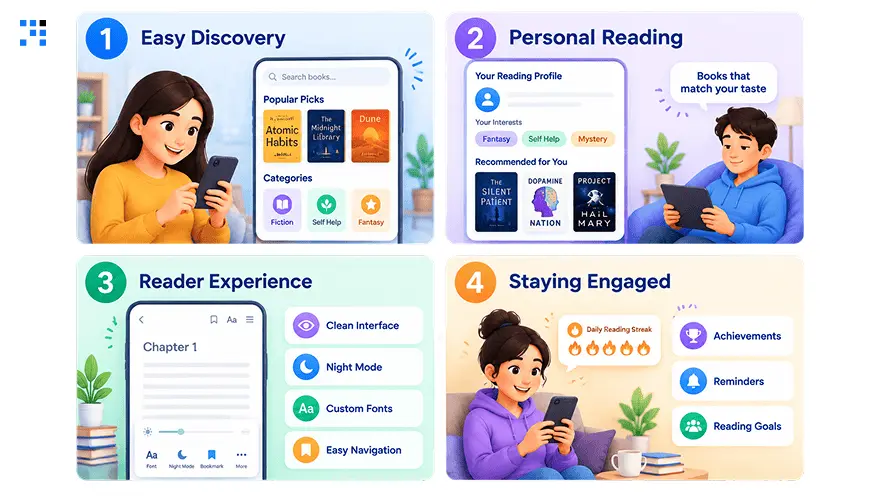
1. Easy Discovery
Readers should find books without unnecessary searching.
A clear library helps users quickly continue previous reading.
Categories and recommendations can also encourage further exploration.
2. Personal Reading
People read differently depending on their habits and preferences.
Bookmarks help readers save meaningful places for later.
Highlights and notes make reading feel more personal.
3. Reader Experience
Typography directly affects how comfortably users consume longer content.
Themes should support different lighting conditions throughout reading sessions.
Navigation controls need to remain accessible without interrupting reading.
Responsive layouts keep interactions consistent across supported devices.
4. Staying Engaged
Small conveniences can encourage readers to return regularly.
Progress indicators show how much content remains unfinished.
Resume features remove friction when users return later.
What Shapes a Successful Book Reading App
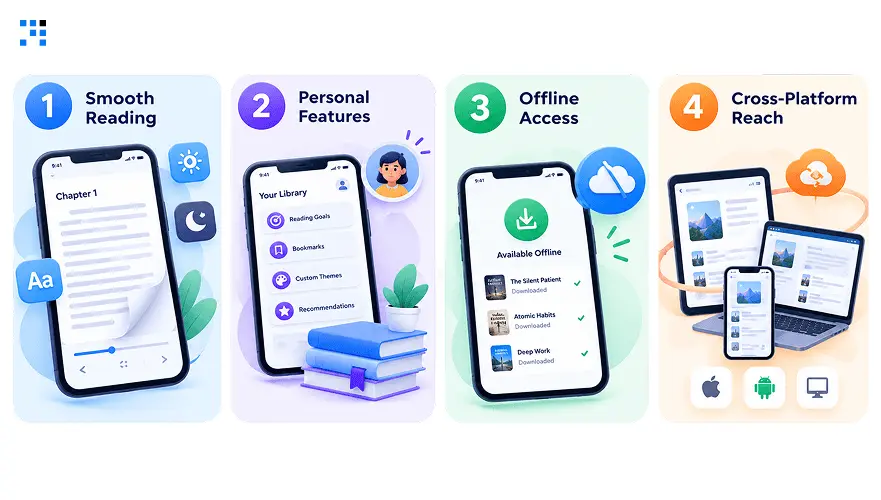
1. Smooth Reading
The reading screen should feel fast from the first interaction.
EPUB and PDF support lets users access different book formats.
Fast loading also matters when readers open larger files.
2. Personal Features
Readers expect their activity to stay available after closing.
Bookmarks, highlights, and notes should save without extra effort.
Provider or Riverpod can help manage these reading interactions.
3. Offline Access
Reading should not stop whenever an internet connection disappears.
Local storage allows users to keep selected books available.
SharedPreferences and Sqflite can support different storage requirements.
4. Cross-Platform Reach
A consistent experience matters across phones and operating systems.
Flutter helps maintain similar experiences across Android and iOS.
One shared codebase also supports faster product expansion.
What Challenges Affect a Book Reading App
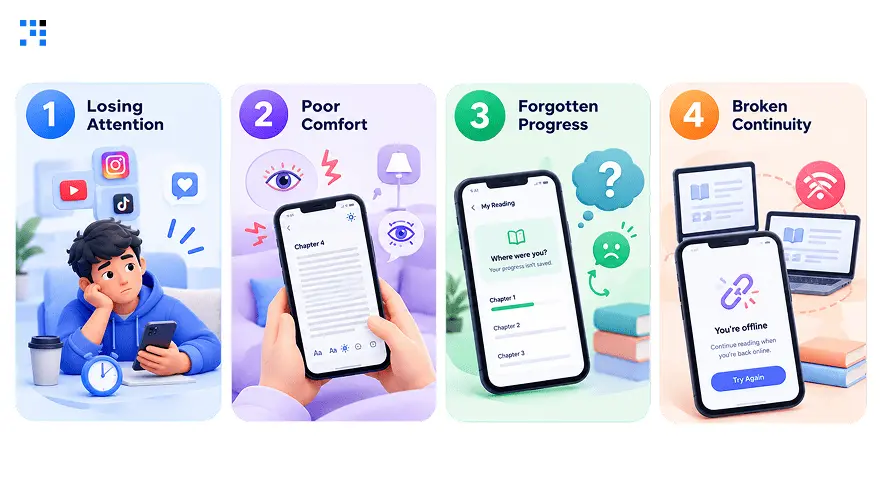
1. Losing Attention
Readers may leave when opening a book takes too long.
Slow screens can interrupt the reading flow quickly.
Fast loading keeps the experience focused on the content.
2. Poor Comfort
Users may stop reading when text feels difficult to follow.
Small controls can also make everyday actions frustrating.
Flexible fonts, spacing, themes, and layouts improve comfort.
3. Forgotten Progress
Readers expect the app to remember where they stopped.
Losing progress can make returning to books frustrating.
Automatic progress saving creates a smoother return experience.
4. Broken Continuity
People increasingly switch between phones and other devices.
Their notes and bookmarks should follow their reading activity.
Cloud synchronization helps maintain that continuity across devices.
How to Build a Book Reading App Step by Step
First, let’s set up the foundation for our Flutter ebook reader tutorial with GitHub.
Initialize Flutter Project
Run this command to create a new Flutter project:
                flutter create book_reader_app
                cd book_reader_app
Add Dependencies
In your pubspec.yaml, add these essential packages:
                dependencies:
                flutter:
                    sdk: flutter
                epubx: ^4.0.0 	# For EPUB rendering
                pdfx: ^2.6.0  	# For PDF rendering
                provider: ^6.0.5  # For state management
                shared_preferences: ^2.2.2 # For saving bookmarks & notes
                sqflite: ^2.3.0   # For local database storage
Then run:
flutter pub get
For the full starter code, you can see the complete book reading app Flutter source code on GitHub.
Step 2: Displaying eBooks (EPUB + PDF Support)
A book reading app in Flutter must support EPUB and PDF files. Let’s implement both.
Flutter EPUB Reader Example Code
                import 'package:flutter/material.dart';
                import 'package:epubx/epubx.dart';

                class EpubReaderScreen extends StatefulWidget {
                final String filePath;
                const EpubReaderScreen({super.key, required this.filePath});

                @override
                State <EpubReaderScreen> createState() => _EpubReaderScreenState();
                }

                class _EpubReaderScreenState extends State {
                String? _content;

                @override
                void initState() {
                    super.initState();
                    _loadBook();
                }

                Future <void> _loadBook() async {
                    final bytes = await DefaultAssetBundle.of(context).load(widget.filePath);
                    final book = await EpubReader.readBook(bytes.buffer.asUint8List());
                    setState(() {
                    _content = book.Chapters!.map((c) => c.HtmlContent).join("\n\n");
                    });
                }

                @override
                Widget build(BuildContext context) {
                    return Scaffold(
                    appBar: AppBar(title: const Text("EPUB Reader")),
                    body: _content == null
                        ? const Center(child: CircularProgressIndicator())
                        : SingleChildScrollView(
                            padding: const EdgeInsets.all(16),
                            child: Text(_content ?? ""),
                            ),
                    );
                }
                }
Flutter PDF Reader Example
                import 'package:flutter/material.dart';
                import 'package:pdfx/pdfx.dart';

                class PdfReaderScreen extends StatelessWidget {
                final String filePath;
                const PdfReaderScreen({super.key, required this.filePath});

                @override
                Widget build(BuildContext context) {
                    final pdfController = PdfController(
                    document: PdfDocument.openAsset(filePath),
                    );

                    return Scaffold(
                    appBar: AppBar(title: const Text("PDF Reader")),
                    body: PdfView(controller: pdfController),
                    );
                }
                }
Performance Tip: For large files, enable lazy loading and caching to keep your Flutter PDF reader and epub
reader Flutter app fast.
Step 3: Adding Bookmarks, Highlights & Notes
This is where your Flutter ebook reader stands out. Let’s add bookmarks, highlights, and notes.
How to Implement Bookmarks and Highlights in a Flutter eBook App?
We’ll use SharedPreferences or Sqflite to store highlights/notes.
                import 'package:flutter/material.dart';
                import 'package:shared_preferences/shared_preferences.dart';

                class NotesScreen extends StatefulWidget {
                final String bookId;
                const NotesScreen({super.key, required this.bookId});

                @override
                State createState() => _NotesScreenState();
                }

                class _NotesScreenState extends State {
                List notes = [];
                final TextEditingController controller = TextEditingController();

                @override
                void initState() {
                    super.initState();
                    _loadNotes();
                }

                Future _loadNotes() async {
                    final prefs = await SharedPreferences.getInstance();
                    setState(() {
                    notes = prefs.getStringList("${widget.bookId}_notes") ?? [];
                    });
                }

                Future _addNote() async {
                    final prefs = await SharedPreferences.getInstance();
                    notes.add(controller.text);
                    await prefs.setStringList("${widget.bookId}_notes", notes);
                    controller.clear();
                    setState(() {});
                }

                @override
                Widget build(BuildContext context) {
                    return Scaffold(
                    appBar: AppBar(title: const Text("My Notes")),
                    body: Column(
                        children: [
                        TextField(
                            controller: controller,
                            decoration: const InputDecoration(
                            hintText: "Add a note or highlight",
                            ),
                        ),
                        ElevatedButton(onPressed: _addNote, child: const Text("Save Note")),
                        Expanded(
                            child: ListView.builder(
                            itemCount: notes.length,
                            itemBuilder: (_, i) => ListTile(title: Text(notes[i])),
                            ),
                        ),
                        ],
                    ),
                    );
                }
                }
Now your users can highlight and save notes directly inside the app.
Step 4: Saving Reading Progress & Resume Feature
No one likes to lose their place. Let’s see how to save reading progress in a Flutter ebook app.
                import 'package:flutter/material.dart';
                    import 'package:shared_preferences/shared_preferences.dart';

                    class ReadingScreen extends StatefulWidget {
                    const ReadingScreen({super.key});

                    @override
                    State createState() => _ReadingScreenState();
                    }

                    class _ReadingScreenState extends State {
                    int currentPage = 0;

                    @override
                    void initState() {
                        super.initState();
                        _loadProgress();
                    }

                    Future _loadProgress() async {
                        final prefs = await SharedPreferences.getInstance();
                        setState(() {
                        currentPage = prefs.getInt("currentPage") ?? 0;
                        });
                    }

                    Future _saveProgress(int page) async {
                        final prefs = await SharedPreferences.getInstance();
                        await prefs.setInt("currentPage", page);
                    }

                    @override
                    Widget build(BuildContext context) {
                        return Scaffold(
                        appBar: AppBar(title: const Text("Reading Progress")),
                        body: Column(
                            children: [
                            Text("Current Page: $currentPage"),
                            ElevatedButton(
                                onPressed: () {
                                setState(() => currentPage++);
                                _saveProgress(currentPage);
                                },
                                child: const Text("Next Page"),
                            )
                            ],
                        ),
                        );
                    }
                    }
Now readers can resume exactly where they left off.
Step 5: Offline & Cloud Sync (Optional, Advanced)
Want to build an offline ebook reader app in Flutter? Just cache books locally.
- Use Sqflite or Hive for offline storage.
- For cloud sync across devices: use Firebase Firestore or Supabase.
                // Example for syncing notes with Firebase
                    import 'package:cloud_firestore/cloud_firestore.dart';

                    Future<void> saveNoteToCloud(String bookId, String note) async {
                    await FirebaseFirestore.instance
                        .collection("books")
                        .doc(bookId)
                        .collection("notes")
                        .add({"text": note, "createdAt": DateTime.now()});
                    }
This way, users can switch devices and still keep their notes, bookmarks, and progress.
Step 6: UI/UX Polish: Dark Mode, Themes & Smooth Reading Experience
A great book reading app is not just about functionality; it must feel good to use.
Add Dark Mode
                return MaterialApp(
                    theme: ThemeData.light(),
                    darkTheme: ThemeData.dark(),
                    themeMode: ThemeMode.system, // Switches automatically
                    home: const EpubReaderScreen(filePath: "assets/sample.epub"),
                    );
Add Animations (Page Flip)
Use packages like page_turn for realistic page-flip transitions.
                PageTurnController controller = PageTurnController();

                PageTurn(
                controller: controller,
                backgroundColor: Colors.white,
                children: [
                    Container(color: Colors.red, child: const Center(child: Text("Page 1"))),
                    Container(color: Colors.green, child: const Center(child: Text("Page 2"))),
                ],
                )
Here’s the Complete GitHub Code
What Keeps Customer Data Management Accurate After Go-Live
1. Readers Understanding
Reader behavior comes first when understanding how people discover, read, and revisit books.
Reading habits help shape the product experience from the beginning.
This keeps features connected to actual user needs.
2. Design the Experience
Each screen is designed around simple and natural reading interactions.
Book discovery should feel natural and easy to navigate.
Reading screens should keep attention focused on the content.
Personal preferences can make the experience feel more engaging.
3. Build Engagement
User engagement shapes features that encourage readers to return regularly.
Progress tracking can motivate users to continue unfinished chapters.
Bookmarks, highlights, notes, and recommendations add personal value.
Thoughtful interactions can turn occasional readers into regular users.
4. Plan for Growth
Your product goals guide the first version and its feature priorities.
Future features should not require rebuilding the entire experience.
New formats, subscriptions, libraries, and social features can follow.
This gives the product room to grow with its audience.
5. Deliver the Product
Flutter development expertise brings those product decisions into a reliable experience.
Our team handles the interface, functionality, integrations, and testing.
The result is built for real users and business growth.
From MVPs to larger platforms, we focus on reliable product delivery.
FAQs
Yes. The product can be shaped around how your audience discovers, reads, saves, and returns to content. This helps us prioritize features that serve your users rather than adding functionality without purpose.
The difference starts with the experience, not simply the feature list. We focus on your audience, reading habits, product positioning, and interaction patterns to create an experience with its own identity.
Yes. We can help define the initial product scope around your business goals and user needs. This keeps the first release focused while leaving room for features that can be introduced later.
The product can be planned with future growth in mind from the beginning. As your requirements evolve, we can extend the experience with new capabilities without treating every addition as a completely new product.
Yes. Our involvement can extend beyond the first release as the product evolves. New user feedback, changing requirements, and growth opportunities can guide ongoing improvements to the experience.