Many Flutter apps start small but quickly become hard to manage when dialogs are built again and again for every screen.
Developers often copy-paste showDialog() code, which leads to code duplication, design mismatch, and hidden bugs.
Without a reusable dialog Flutter approach, apps suffer from poor Flutter UI consistency.
One screen may show a different button style, spacing, or message format than another. Over time, fixing or updating dialogs becomes painful and risky.
In real-world Flutter apps, dialogs are used everywhere: login errors, delete confirmations, alerts, and success messages.
That’s why reusable dialog widgets matter. They help in clean code Flutter practices, reduce repetition, and keep your UI predictable, scalable, and easy to maintain.
Here in this blog, you can learn about Flutter reusable dialog components, and you can create a custom dialog widget in Flutter.
What Makes a Dialog “Reusable” in Flutter?
A basic showDialog() works fine for quick tasks, but it’s not built for scale. When every screen defines its own dialog, maintenance becomes difficult.
A Flutter dialog component solves this by creating a single dialog widget that can be reused across the app. Reusable dialogs are parameter-driven.
Instead of rewriting the UI, you pass values like title, message, buttons, and callbacks. This is the foundation of reusable widgets in Flutter.
You should create a reusable dialog component when:
- The same dialog UI appears on multiple screens.
- UI consistency matters for branding.
- You want to follow Flutter showDialog best practices.
Inline dialogs are fine for one-time use, but reusable dialog components are important for production-ready Flutter apps.
What Are the Clean Code Principles for Reusable Dialog Widgets in Flutter?
Most blogs show how to build dialogs, but skip clean architecture. A Flutter dialog clean code approach makes dialogs easy to extend and debug.
- Single Responsibility : Each dialog widget should only handle UI, not business logic. This keeps your clean code Flutter reusable widget simple and testable.
- Avoid Context Misuse : Dialogs should not depend on screen-level logic. Passing callbacks instead of tightly coupling BuildContext avoids crashes and unexpected behavior.
- Clear Naming & Folder Structure : Use clear names like AppDialog, ConfirmDialog, or ErrorDialog. Store them inside a dedicated /dialogs or /widgets/dialogs folder.
- Scalable Design : A good reusable dialog works across features like authentication, payments, errors, and confirmations without rewriting code.
This structure ensures your Flutter dialogs stay clean, reusable, and scalable.
Step-by-Step: Building Your First Reusable Dialog Component in Flutter
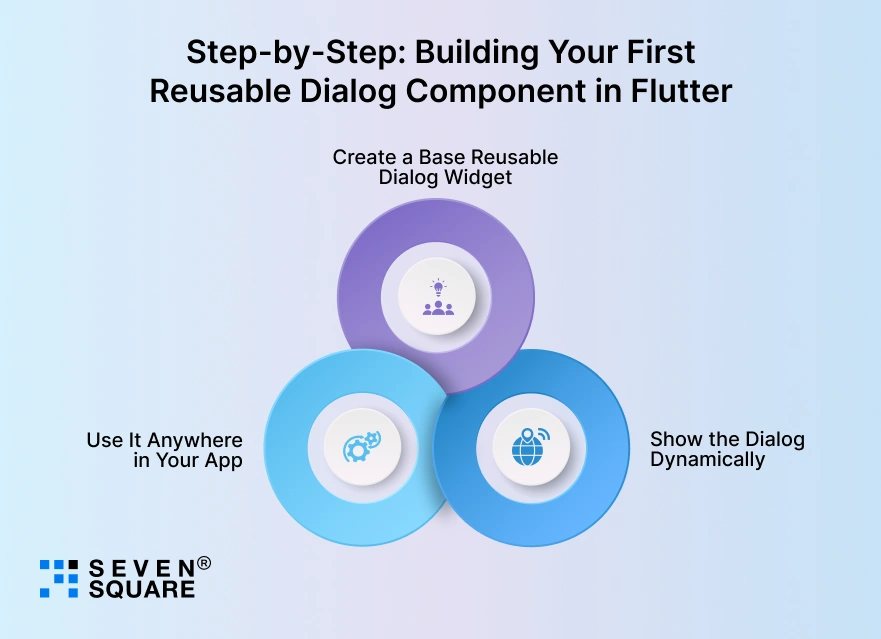
Instead of rewriting showDialog() on every screen, we’ll create one reusable dialog widget that accepts dynamic content.
Step 1: Create a Base Reusable Dialog Widget
This widget will act as the foundation for all dialogs in your app.
        import 'package:flutter/material.dart';

        class AppDialog extends StatelessWidget {
          final String title;
          final String message;
          final List actions;

          const AppDialog({
          Key? key,
          required this.title,
          required this.message,
          required this.actions,
          }) : super(key: key);

          @override
          Widget build(BuildContext context) {
          return AlertDialog(
            title: Text(title),
            content: Text(message),
            actions: actions,
          );
          }
        }
This Flutter reusable dialog widget example:
- Keeps UI in one place.
- Follow clean code.
- Works across all screens.
Step 2: Show the Dialog Dynamically
Create a helper function so dialogs stay consistent everywhere.
        Future showAppDialog({
          required BuildContext context,
          required String title,
          required String message,
          required List actions,
        }) {
          return showDialog(
          context: context,
          builder: (_) => AppDialog(
            title: title,
            message: message,
            actions: actions,
          ),
          );
        }
Step 3: Use It Anywhere in Your App
        ElevatedButton(
          onPressed: () {
          showAppDialog(
            context: context,
            title: 'Delete Item',
            message: 'Are you sure you want to delete this item?',
            actions: [
              TextButton(
                onPressed: () => Navigator.pop(context),
                child: const Text('Cancel'),
              ),
              ElevatedButton(
                onPressed: () {
                  Navigator.pop(context);
                },
                child: const Text('Delete'),
              ),
            ],
          );
          },
          child: const Text('Show Dialog'),
        );
This approach keeps dialogs flexible without rewriting UI, which is exactly what modern Flutter apps need.
How to Create Multiple Dialog Types from One Reusable Component?
Once you have a base dialog, you can easily create multiple dialog types from it. This is where a reusable custom dialog component Flutter approach really shines.
Alert Dialog
        void showAlertDialog(BuildContext context, String message) {
          showAppDialog(
          context: context,
          title: 'Alert',
          message: message,
          actions: [
            TextButton(
              onPressed: () => Navigator.pop(context),
              child: const Text('OK'),
            ),
          ],
          );
        }
Confirmation Dialog
        Future showConfirmDialog(BuildContext context) {
          return showDialog(
          context: context,
          builder: (_) => AppDialog(
            title: 'Confirm',
            message: 'Do you want to continue?',
            actions: [
              TextButton(
                onPressed: () => Navigator.pop(context, false),
                child: const Text('No'),
              ),
              ElevatedButton(
                onPressed: () => Navigator.pop(context, true),
                child: const Text('Yes'),
              ),
            ],
          ),
          );
        }
Success & Error Dialogs
        void showStatusDialog(
          BuildContext context,
          String title,
          String message,
        ) {
          showAppDialog(
          context: context,
          title: title,
          message: message,
          actions: [
            TextButton(
              onPressed: () => Navigator.pop(context),
              child: const Text('Close'),
            ),
          ],
          );
        }
Custom Content Dialog
        class CustomContentDialog extends StatelessWidget {
          final Widget child;

          const CustomContentDialog({super.key, required this.child});

          @override
          Widget build(BuildContext context) {
          return AlertDialog(
            content: child,
          );
          }
        }
This makes your Flutter custom dialog widget highly flexible for forms, loaders, or rich content.
How to Manage Dialog Actions & Callbacks the Clean Way?
Handling actions incorrectly leads to messy code. Let’s follow Flutter dialog best practices.
Pass Callbacks Instead of Business Logic
        class ActionDialog extends StatelessWidget {
          final VoidCallback onConfirm;

          const ActionDialog({super.key, required this.onConfirm});

          @override
          Widget build(BuildContext context) {
          return AppDialog(
            title: 'Confirm Action',
            message: 'Proceed with this action?',
            actions: [
              TextButton(
                onPressed: () => Navigator.pop(context),
                child: const Text('Cancel'),
              ),
              ElevatedButton(
                onPressed: () {
                  onConfirm();
                  Navigator.pop(context);
                },
                child: const Text('Confirm'),
              ),
            ],
          );
          }
        }
This ensures:
- No tight coupling.
- Better testing.
- Reusable dialog Flutter clean code.
Returning Results from Dialogs
        final result = await showConfirmDialog(context);

          if (result == true) {
            // User confirmed
          }
This pattern is safe, readable, and scalable.
How to Make Dialogs Theme-Aware & App-Wide Consistent?
Reusable dialogs should automatically match your app design. That’s why Flutter UI components reusable patterns matter.
Centralized Styling Using Theme
        AlertDialog(
          shape: RoundedRectangleBorder(
          borderRadius: BorderRadius.circular(12),
          ),
        )
Or apply styles globally:
        ThemeData(
          dialogTheme: DialogTheme(
          shape: RoundedRectangleBorder(
            borderRadius: BorderRadius.circular(12),
          ),
          ),
        );
Here’s the Complete Guide to Create Reusable Dialog Components in Flutter.
Why Choose Us for Reusable Dialog Components in Flutter?
- Our team designs reusable dialog Flutter components that reduce duplication and maintain Flutter UI consistency across every screen.
- We follow clean code Flutter principles to build dialog widgets that stay easy to scale, test, and maintain.
- Our team creates Flutter reusable dialog widgets that work smoothly across features like authentication, alerts, and confirmations.
- We specialize in Flutter dialog best practices, ensuring dialogs remain flexible without rewriting UI or logic.
Want to Have Reusable Components in Flutter? Contact Us Now!
What Are the Use Cases for Reusable Dialog Components?

Reusable dialogs are not just a coding trick, they solve real business problems.
- Authentication flows: Login errors, session expiry alerts, & password reset confirmations.
- Delete confirmations: Prevent accidental data loss with consistent warning dialogs.
- API error handling: Show uniform error messages across the app.
- Success & failure notifications: Improve user trust with clear feedback.
In production apps, reusable dialog widgets in Flutter apps rely on saving development time and maintaining UI quality.
Is Building Reusable Dialog Components Worth It?
Yes, the benefits of reusable dialog Flutter architecture go beyond cleaner code.
- Performance impact is minimal, but UI consistency improves greatly.
- Developer productivity increases as dialogs are built once and reused everywhere.
- Long-term maintenance becomes easier, faster, and safer.
Reusable dialogs align perfectly with Flutter’s clean architecture UI and scalable app development.
FAQs
- Yes. Reusable dialog components remove repeated showDialog() code and centralize UI logic, improving maintainability.
- For large apps, yes. Reusable dialogs ensure Flutter UI consistency and follow clean code Flutter dialog practices.
- Keep dialog stateless when possible. For dynamic behavior, pass state via parameters or use callbacks instead of internal logic.
- Use single responsibility, avoid tight coupling, keep widgets configurable, and follow clean folder structures.