Here you can see my development workflow for setting up a Node.js backend, MongoDB models, JWT authentication, React frontend, environment variables, and basic CI/CD deployment.
Ever wondered why a web app starts falling apart six months after launch?
I’ve seen this happen more times than I can count.
A founder builds their first version fast. Features ship, users sign up, everything feels fine.
Then the product grows. A new feature gets bolted onto an API that was never structured to handle it.
Authentication was thrown together to just “work” for the demo. It was never actually secured.
Every new deployment means someone manually pushing code at 11 PM, hoping nothing breaks.
Six months in, the team isn’t building anymore. They’re firefighting.
None of this happens because the developers were careless. It happens because nobody mapped out the full stack structure before the first line of code got written.
That’s why I believe understanding the complete development flow, from backend to deployment, is important for building production-ready applications.
My Approach to Full Stack Web Development
Honestly, writing a blog is something new for me.
I’m a full-stack developer, and most of my day goes into writing code, fixing bugs, designing APIs, and making
sure things work in production.
My team recently encouraged me to share how I usually build and deploy a full stack web application. So this is
my first attempt at writing something about the way I work.
I might not be the best writer yet, but I do know how I build applications. So in this blog, I’ll try to explain
my typical workflow as a developer when creating a full stack web application.

For me, a full stack application is basically a combination of three major parts:
- Frontend: The part users interact with.
- Backend: The logic that processes requests.
- Database: Where the application stores data.
- Deployment: The App can be deployed by using AWS or Vercel.
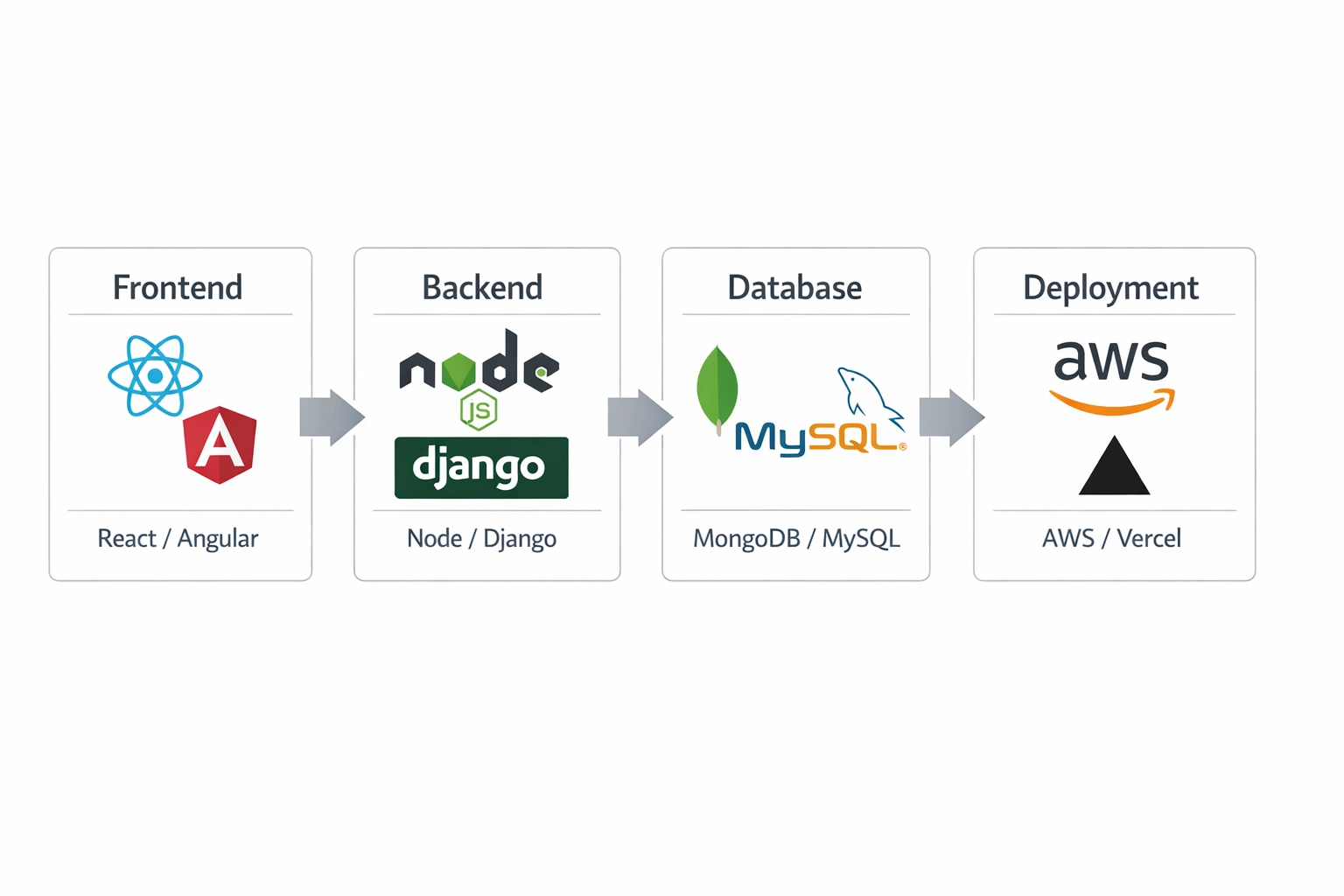
When these four pieces work together properly, we get a complete working system.
As a backend or full-stack developer, I feel it’s really important to understand the entire development
lifecycle, from APIs and database design to deployment.
Planning a Full Stack Web App?
Backend Setup (Node.js + Express Example)
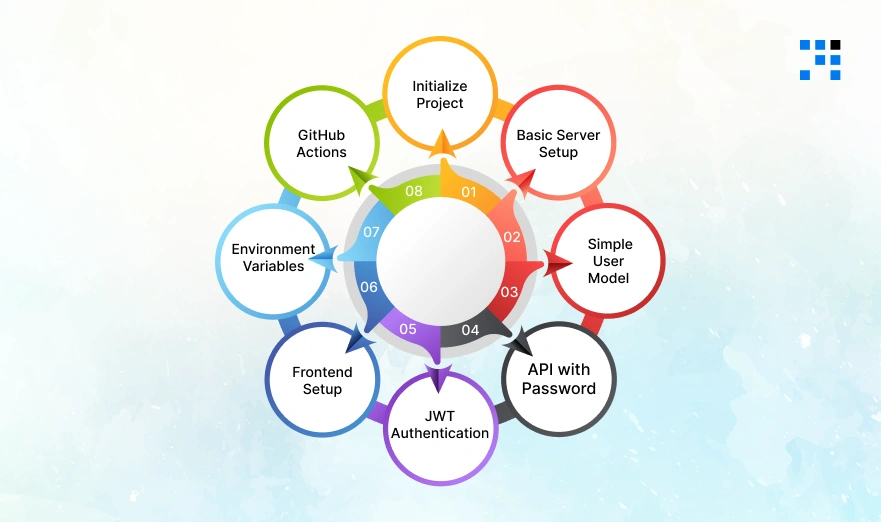
Whenever I start a backend project, I usually begin with Node.js and Express because it is lightweight, flexible, and easy to structure.
Step 1: Initialize Project
First, I initialize the project and install the dependencies I commonly use.
                    npm init -y
                    npm install express mongoose dotenv cors jsonwebtoken bcryptjs
These packages help with:
- Express: Creating the API server.
- Mongoose: Interacting with MongoDB.
- dotenv: Managing environment variables.
- cors: Allowing frontend requests.
- jsonwebtoken: Authentication tokens.
- bcryptjs: Password hashing.
Step 2: Basic Server Setup
Now I create a basic server file like server.js, app.js, or main.js.
                    const express = require("express");
                    const mongoose = require("mongoose");
                    const dotenv = require("dotenv");
                    const cors = require("cors");

                    dotenv.config();

                    const app = express();

                    app.use(cors());
                    app.use(express.json());

                    mongoose.connect(process.env.MONGO_URI)
                    .then(() => console.log("DB Connected"))
                    .catch(err => console.log(err));

                    app.get("/", (req, res) => {
                    res.send("API Running");
                    });

                    app.listen(5000, () => console.log("Server running on port 5000"));
What this does:
- Loads environment variables.
- Connects to MongoDB.
- Enables JSON request handling.
- Start the server.
Once this works, I know my backend foundation is ready.
Step 3: Creating a Simple User Model (MongoDB + Mongoose)
The next thing I usually do is define my database models.
For example, a simple User model might look like this:
                    const mongoose = require("mongoose");
                    const userSchema = new mongoose.Schema({
                    name: String,
                    email: { type: String, unique: true },
                    password: String
                    }, { timestamps: true });

                    module.exports = mongoose.model("User", userSchema);
This schema stores:
- User name.
- Email (unique).
- Password.
The { timestamps: true } option automatically adds createdAt and updatedAt fields.
Step 4: Register API with Password Hashing
One important thing I always follow is never storing plain passwords in the database.
Instead, I hash them using bcrypt.
                    const bcrypt = require("bcryptjs");
                    const User = require("./models/User");

                    app.post("/register", async (req, res) => {

                    const { name, email, password } = req.body;

                    const hashedPassword = await bcrypt.hash(password, 10);

                    const user = new User({
                    name,
                    email,
                    password: hashedPassword
                    });

                    await user.save();

                    res.json({ message: "User Registered Successfully" });

                    });
Here’s what happens step-by-step:
- The API receives name, email, and password from req.body.
- The password is hashed using bcrypt.hash(password, 10).
- The original password is never stored directly.
- A new user object is created.
- The user is saved to the database.
This small step adds a big layer of security to the system.
Step 5: JWT Authentication
Once users can register, the next step is authentication.
I normally use JWT (JSON Web Tokens) for session management.
                    const jwt = require("jsonwebtoken");

                    const token = jwt.sign(
                    { userId: user._id },
                    process.env.JWT_SECRET,
                    { expiresIn: "1d" }
                    );
Here’s what this does:
- jwt.sign() generates a secure token.
- { userId: user._id } becomes the token payload.
- JWT_SECRET signs the token securely.
- { expiresIn: “1d” } makes the token expire in one day.
So whenever a user makes an authenticated request, the backend can verify the token and identify the user.
Step 6: Frontend Setup (React Example)
Once the backend APIs are ready, I move to the frontend.
For quick setup, I often start with React.
Create React App
                npx create-react-app client
                cd client
                npm install axios react-router-dom
These dependencies help with:
- Axios: API requests.
- React Router: Routing between pages.
Example API Call (Login)
                import axios from "axios";

                const loginUser = async () => {

                const res = await axios.post("http://localhost:5000/login", {
                email: "test@gmail.com",
                password: "123456"
                });

                console.log(res.data);

                };
This sends login credentials to the backend and receives the response (usually a JWT token).
Step 6: Frontend Setup (React Example)
Once the backend APIs are ready, I move to the frontend.
For quick setup, I often start with React.
Create React App
                            npx create-react-app client
                            cd client
                            npm install axios react-router-dom
These dependencies help with:
- Axios: API requests.
- React Router: Routing between pages.
Example API Call (Login)
                            import axios from "axios";

                            const loginUser = async () => {

                            const res = await axios.post("http://localhost:5000/login", {
                            email: "test@gmail.com",
                            password: "123456"
                            });

                            console.log(res.data);

                            };
This sends login credentials to the backend and receives the response (usually a JWT token).
Step 7: Environment Variables (.env)
I always keep sensitive configuration inside a .env file.
Example:
                            PORT=5000
                            MONGO_URI=mongodb://localhost:27017/myapp
                            JWT_SECRET=mysecretkey
Each variable serves a purpose:
- PORT: Where the server runs.
- MONGO_URI: MongoDB connection string.
- JWT_SECRET: Secret key for authentication tokens.
Why avoid hardcoding these values?
- It creates security risks.
- Secrets can leak in repositories.
- Managing different environments becomes difficult.
Using .env files makes applications safer and easier to maintain.
Step 8: GitHub Actions (Basic CI/CD)
When the project grows, I usually add basic CI/CD using GitHub Actions.
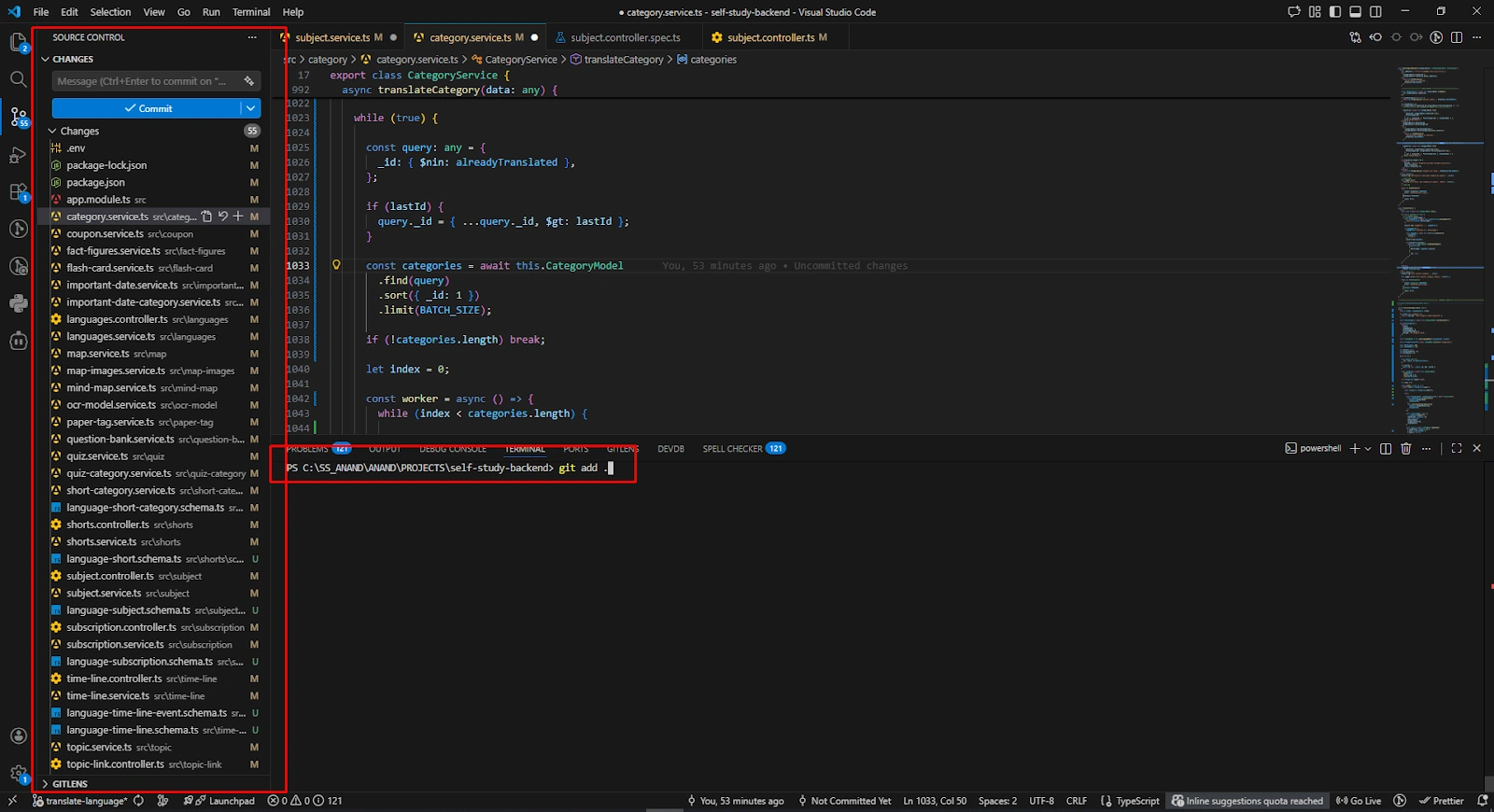
Example workflow:
name: Deploy App
on:
push:
branches:
– main
jobs:
build:
runs-on: ubuntu-latest
steps:
– uses: actions/checkout@v2
– name: Install Dependencies
run: npm install
CI/CD helps automate deployment whenever code is pushed.
Benefits:
- Saves development time.
- Reduces manual deployment steps.
- Ensures consistent builds.
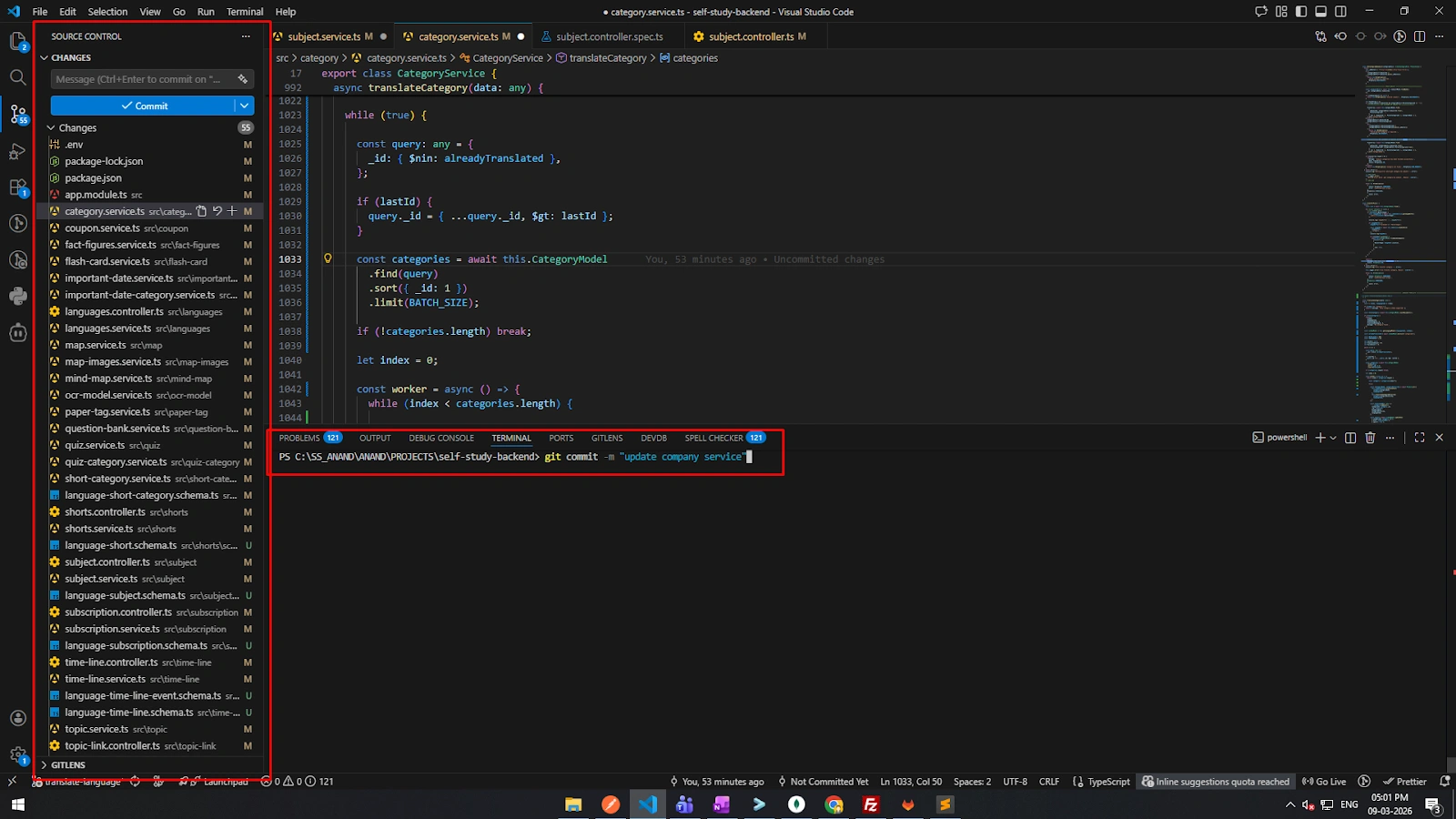
However, the free GitHub plan has usage limits, so sometimes pipelines fail if the quota is exceeded.
How I Secure Full Stack Web Applications
Even for small projects, I try to keep these security basics in mind:
- Validate all inputs.
- Use rate limiting.
- Always deploy with HTTPS.
- Never expose secrets.
- Store hashed passwords only.
Security might feel like extra work, but it saves a lot of trouble later.
Need Help Building a Full Stack Application?
That’s How I Usually Build a Full Stack Web Apps
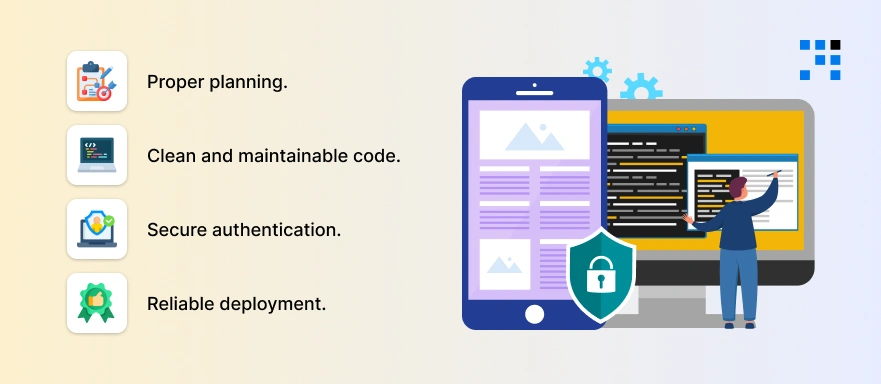
Building a full stack web application is not just about writing backend APIs or designing a UI. It involves:
- Proper planning.
- Clean and maintainable code.
- Secure authentication.
- Reliable deployment.
As a developer, understanding the end-to-end system helps build stronger and more scalable applications.
My personal approach is simple: Start small, build step-by-step, test everything, and always write
production-ready code.
And since this is my first time writing a blog, I hope this walkthrough gives you a practical idea of how I usually build and deploy a full stack application.
Need help building your full stack web application?
FAQs
It depends heavily on the feature scope, but a focused MVP with core backend, frontend, and authentication can often come together in a few weeks. I always prioritize getting a working, secure version live before layering in additional features.
Not necessarily as one person, many teams split this across specialists. What matters more is that someone understands how the pieces connect, so the API, database, and frontend don’t end up working against each other.
Not always, it depends on how structured your data is. MongoDB works well for flexible, document-based data, but a relational database might fit better if your application relies heavily on structured relationships between records.
Skipping proper planning around authentication and deployment early on is the most common one. These get treated as an afterthought, then become expensive, risky problems to fix once real users are already depending on the app.
In most cases, yes, especially if the core logic is solid and only specific layers like authentication or deployment need rework. I usually start with an audit to see what can be improved versus what genuinely needs to be rebuilt.