Users expect more than just uploading images, they want to edit photos instantly inside the app.
That’s why adding a Flutter image editor is becoming a necessity for modern mobile apps.
Social media apps rely on photo editors to let users crop, rotate, and apply filters before posting.
eCommerce apps use image editing to improve product photos, adjust lighting, and ensure consistency.
Even healthcare and education apps depend on image editing for reports, prescriptions, and document uploads.
Building a Flutter photo editor gives businesses a huge advantage:
- One codebase for Android and iOS.
- Faster development and lower costs.
- Smooth UI with native-like performance.
Flutter makes it easy to build a cross-platform image editor that looks great, performs well, and scales with your product.
Here in this blog you can learn to build Flutter image editing app and how Flutter image editor can be helpful in an app.
How We’re Building a Real Flutter Image Editor?
This is not a basic example or UI mockup. In this Flutter image editor tutorial, we are building a real image editing app that can be used in production.
Features included:
- Image crop with aspect ratio control.
- Rotate images without losing quality.
- Apply image filters in real time.
- Smooth preview before saving.
- Optimized for Android & iOS.
This Flutter image editing app focuses on:
- Clean and dynamic UI.
- Fast image processing.
- Scalable code structure.
- GitHub-ready source code you can reuse or extend.
Perfect for startups, SaaS products, and businesses building image-heavy apps.
What Will Be a Flutter Image Editor Architecture?
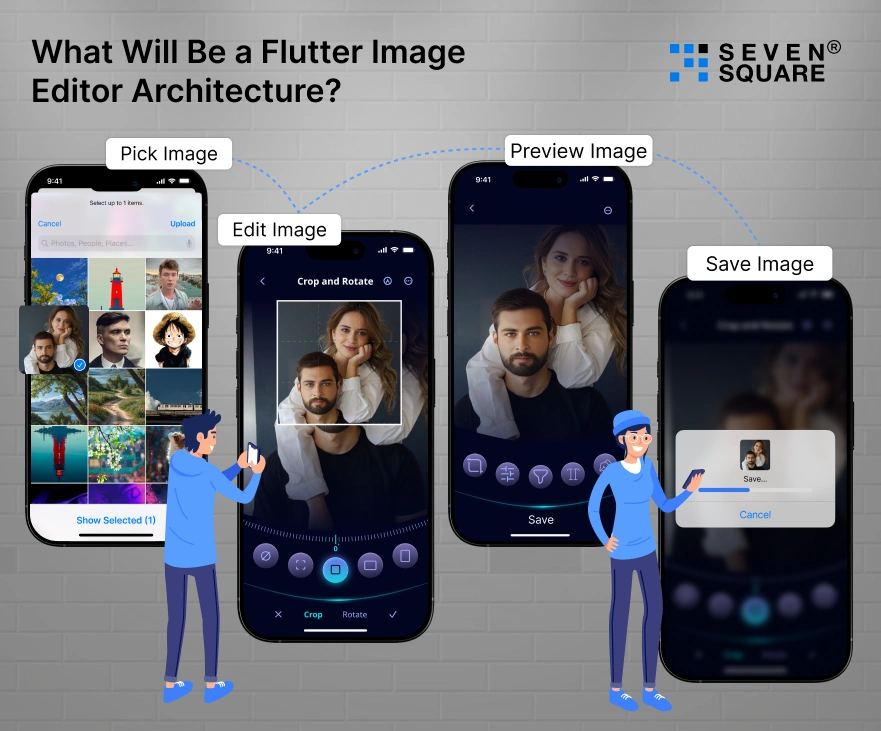
To build a stable and scalable image editor, architecture matters as much as features.
App Flow
- Pick Image → Edit → Preview → Save
This simple flow keeps the user experience smooth and predictable.
State Management
- Lightweight state handling for editor tools.
- Separate UI state from image processing logic.
- Easy to maintain and debug.
Performance Considerations
- Image processing handled efficiently.
- Prevents UI freezes during crop, rotate, and filter operations.
- Optimized memory usage for large images.
Folder Structure
A clean structure helps scale your Flutter image editing features:
- ui/ for editor screens.
- services/ for image logic.
- utils/ for helpers and constants.
This approach works well for long-term app growth.
How to Choose the Best Flutter Plugins for Image Editing?
Choosing the best Flutter image plugins directly affects performance, app size, and user experience.
Image Picker
- Plugin-based image picker is fast and reliable.
- Custom file selectors increase complexity with little benefit.
Crop & Rotate
- image_cropper Flutter example is widely used and well-maintained.
- Supports aspect ratios, rotation, and platform-specific UI.
- Better performance than custom implementations.
Filters
- Plugin-based filters are quick to implement.
- Custom filter logic offers more control but needs optimization.
- The right choice depends on app complexity.
Why Plugin Choice Matters?
- Heavy plugins increase APK/IPA size.
- Poorly optimized plugins cause UI lag.
- Smart selection ensures a fast Flutter image editor app.
Step-by-Step: Building the Flutter Image Editor UI
A good image editor starts with a clean and simple UI. Users should understand how to crop, rotate, and apply filters without learning anything.
Designing the Editor Toolbar (Crop, Rotate, Filters)
The toolbar should stay at the bottom for easy thumb access.
        Widget editorToolbar() {
          return Container(
          padding: const EdgeInsets.symmetric(vertical: 12),
          color: Colors.black87,
          child: Row(
            mainAxisAlignment: MainAxisAlignment.spaceAround,
            children: [
              IconButton(
                icon: Icon(Icons.crop, color: Colors.white),
                onPressed: cropImage,
              ),
              IconButton(
                icon: Icon(Icons.rotate_right, color: Colors.white),
                onPressed: rotateImage,
              ),
              IconButton(
                icon: Icon(Icons.filter, color: Colors.white),
                onPressed: openFilterPanel,
              ),
            ],
          ),
          );
        }
Gesture Handling for Better UX
Gestures make the Flutter image editor UI feel natural.
        InteractiveViewer(
          minScale: 0.8,
          maxScale: 4,
          child: Image.file(selectedImage),
        )
Users can zoom and pan easily while editing.
Preview Before Save Feature
Always show a live preview before saving.
        Expanded(
          child: Center(
          child: Image.file(editedImage ?? selectedImage),
          ),
        )
Responsive UI for All Screen Sizes
Flutter makes responsiveness easy:
        LayoutBuilder(
          builder: (context, constraints) {
          return constraints.maxWidth > 600
              ? tabletEditorLayout()
              : mobileEditorLayout();
          },
        );
This ensures your Flutter image editor app looks great on phones and tablets.
How to Implement Image Crop & Rotate in Flutter?
Cropping and rotating images are core features of any Flutter photo editor.
Crop Presets & Aspect Ratios
Using image_cropper:
        Future<void> cropImage() async {
          final croppedFile = await ImageCropper().cropImage(
          sourcePath: selectedImage.path,
          aspectRatioPresets: [
            CropAspectRatioPreset.square,
            CropAspectRatioPreset.ratio4x3,
            CropAspectRatioPreset.original,
          ],
          uiSettings: [
              AndroidUiSettings(
              toolbarTitle: 'Crop Image',
              lockAspectRatio: false,
            ),
            IOSUiSettings(title: 'Crop Image'),
          ],
          );

          if (croppedFile != null) {
          setState(() {
            editedImage = File(croppedFile.path);
          });
          }
        }
Rotate Images Without Quality Loss
Rotation is built into the cropper UI:
CropAspectRatioPreset.original
This avoids resizing and keeps image quality intact.
This makes your Flutter crop rotate image feature stable and reliable.
How to Add Stunning Image Filters in Flutter?
Filters bring life to images and increase user engagement.
Applying Real-Time Filters
Using ColorFiltered:
        Widget applyFilter(ColorFilter filter) {
          return ColorFiltered(
          colorFilter: filter,
          child: Image.file(editedImage ?? selectedImage),
          );
        }
Instagram-Like Filter Effects
Example: Sepia filter
        ColorFilter sepiaFilter = ColorFilter.matrix([
          0.393, 0.769, 0.189, 0, 0,
          0.349, 0.686, 0.168, 0, 0,
          0.272, 0.534, 0.131, 0, 0,
          0,     0, 	0, 	1, 0,
        ]);
Adjust Brightness, Contrast & Saturation
These Flutter image filter effects can be stacked using matrices.
Performance Tips for Smooth Filtering
- Avoid rebuilding widgets unnecessarily.
- Apply filters only on preview.
- Save the final image once the user confirms.
This keeps your Flutter image editor app fast.
How to Make the Image Editor Fast & Smooth?
Reduce UI Jank
- Keep image logic outside UI widgets.
- Use setState only when needed.
Background Isolates for Heavy Processing
compute(processImage, imageData);
This keeps the UI responsive.
Memory Management Tips
- Dispose unused images.
- Avoid storing large image buffers.
Optimize Image Size Before Saving
        final compressed = await FlutterImageCompress.compressWithFile(
          editedImage.path,
          quality: 80,
        );
Better performance and smaller file sizes.
How to Save, Export, & Share Edited Images?
Once editing is done, users want to save or share instantly.
Save to Device Gallery
await ImageGallerySaver.saveFile(editedImage.path);
Export Compressed Images
Perfect for eCommerce and social apps.
Share Edited Photos Across Apps
Share.shareFiles([editedImage.path]);
Handling Permissions Safely
Always request permissions before saving:
await Permission.storage.request();
Complete Details to Create Flutter Image Editor
To help you build faster, this Flutter tutorial with GitHub code provides a complete, reusable image editor with crop, rotate, and filter features.
The code can be directly used in production apps. This Flutter image editor source code anyone.
Project Setup Instructions
Prerequisites
Make sure you have:
- Flutter SDK (latest stable).
- Android Studio / VS Code.
- Android or iOS emulator / real device.
Create a New Flutter Project
        flutter create flutter_image_editor
        cd flutter_image_editor
Add Required Dependencies (pubspec.yaml)
        dependencies:
          flutter:
          sdk: flutter
          image_picker: ^1.0.4
          image_cropper: ^5.0.1
          permission_handler: ^11.0.1
          image_gallery_saver: ^2.0.3
          share_plus: ^7.2.1
          flutter_image_compress: ^2.1.0
        Run:
        flutter pub get
Core Image Editor Code
Pick Image
        Future<void> pickImage() async {
          final picker = ImagePicker();
          final picked = await picker.pickImage(source: ImageSource.gallery);

          if (picked != null) {
          setState(() {
            selectedImage = File(picked.path);
            editedImage = null;
          });
          }
        }
Crop & Rotate Image
        Future<void> cropImage() async {
          final cropped = await ImageCropper().cropImage(
          sourcePath: (editedImage ?? selectedImage).path,
          aspectRatioPresets: [
            CropAspectRatioPreset.square,
            CropAspectRatioPreset.original,
          ],
          uiSettings: [
            AndroidUiSettings(toolbarTitle: 'Edit Image'),
            IOSUiSettings(title: 'Edit Image'),
          ],
          );

          if (cropped != null) {
          setState(() {
            editedImage = File(cropped.path);
          });
          }
        }
Apply Filter
        Widget filteredImage(ColorFilter filter) {
          return ColorFiltered(
          colorFilter: filter,
          child: Image.file(editedImage ?? selectedImage),
          );
        }
Save Edited Image
        Future<void> saveImage() async {
          await Permission.storage.request();
          await ImageGallerySaver.saveFile(
          (editedImage ?? selectedImage).path,
          );
        }
Here’s the Complete GitHub Code to Build an Image Editor in Flutter with Crop, Rotate, & Filter.
How Do We Provide End-to-End Flutter App Development Services?
- We build custom Flutter image editor apps with crop, rotate, and filter features according to real business needs.
- Our team delivers Flutter photo editor solutions that work smoothly on both Android and iOS platforms.
- We focus on performance-optimized Flutter image editing apps that handle large images without UI lag.
- We create scalable Flutter image editors suitable for startups, SaaS products, and enterprise applications.
- Our solutions follow clean architecture, making Flutter image editing features easy to extend and maintain.
Want a Scalable Flutter App? Contact Us Today!
How This Flutter Image Editor Can Be Extended Further?
Once the basics are ready, this Flutter image editor app for Android and iOS can be expanded easily.
Future Improvements
- Drawing & text tools for annotations.
- AI-based filters for auto improvement.
- Background removal using AI models.
- Cloud image storage with Firebase or AWS S3.
These features turn a simple editor into a premium image editing solution for businesses.
Is Flutter Good Enough for Professional Image Editing Apps?
Yes, Flutter is powerful enough for most professional use cases when used correctly.
Flutter vs Native
- Flutter offers faster development and lower costs.
- Native apps provide deeper hardware control.
- Flutter performs exceptionally well for crop, rotate, and filter tasks.
Real-World Scalability
- Many apps already use Flutter for photo editing features with millions of users.
When Flutter Is the Best Choice?
- MVPs and startups.
- Cross-platform business apps.
- SaaS products with image editing needs.
Build Once, Edit Everywhere with Flutter
A Flutter image editor tutorial like this shows how powerful Flutter really is.
Flutter helps you:
- Reduce development cost.
- Launch faster.
- Deliver a rich image editing experience.
With a single codebase, you can build a complete image editor that works smoothly on Android and iOS.
FAQs
- You can build it by combining image picker, crop, rotate, and filter plugins with a clean Flutter UI.
- Using optimized plugins like image_cropper with lightweight filter logic gives the best performance.
- Yes, Flutter is excellent for building fast, cross-platform image editors with smooth UI.
- Yes, Flutter supports image editing features smoothly on both platforms.