Most Flutter apps start with a basic video player, but very soon developers realize its limits.
Default players offer minimal UI and almost no flexibility. You get basic playback, but little control over how users actually interact with videos.
Out of the box, many Flutter video players lack smooth seek bars, custom play & pause buttons, volume control, playback speed options, or a proper full screen experience.
This becomes a serious problem when building real products like OTT platforms, eLearning apps, or content-driven mobile apps.
Flutter video player custom controls make a big difference. With a custom video player UI in Flutter, you decide how the player looks, behaves, and scales.
You can match your brand design, improve user engagement, and deliver a premium video experience instead of a generic one.
In this blog, you’ll know how to build a fully custom video player UI in Flutter that feels professional, flexible, and production-ready.
How Can You Build a Production-Ready Flutter Video Player?
You’ll build a real-world, production-ready Flutter video player that you can directly use in your app or client projects. Here’s what your custom video player will include:
- Custom play and pause button with smooth state handling.
- Seek bar with buffered progress for better streaming feedback.
- Mute, unmute, and volume control options
- Playback speed selector (0.5x to 2x).
- Full screen mode with orientation lock.
- Support for network video streaming.
- Clean UI built with reusable Flutter widgets.
This Flutter video player tutorial with code is designed to save development time.
You’ll also get a Flutter video player example for making it easy to understand, modify, & scale.
How to Choose the Right Approach? video_player vs Chewie (And Why We Go Custom?)
The video_player package in Flutter is the official low-level solution. It gives full control over video playback but does not provide a ready-made UI.
This makes it perfect for developers who want to build fully custom experiences.
Chewie Flutter video player is a UI wrapper built on top of video_player. It works well for quick demos or simple apps.
It becomes restrictive when you want complete control over UI, gestures, animations, or branding. By building directly on the video_player package Flutter, you get:
- Full control over custom UI and interactions.
- Better flexibility for advanced features.
- Easier performance tuning.
- Cleaner architecture for scaling.
That’s why this tutorial focuses on building a custom solution instead of relying on pre-built UI layers.
What Is Flutter Video Player Architecture?
At the core is the Flutter video player controller. It manages loading, playing, pausing, buffering, and disposing of the video resource.
The controller lifecycle starts with initialization, listens to state changes, and ends with proper disposal. The widget tree is divided into:
- Video display layer.
- Custom controls layer.
- Overlay states like loading and buffering.
One of the most common mistakes developers make is forgetting to dispose of the controller.
A clean Flutter video player architecture always handles controller disposal to prevent memory leaks and crashes.
Step-by-Step: How to Build a Video Player in Flutter?
If you’re searching for how to build a video player in Flutter, this is the exact foundation you need. We’ll start simple and then layer custom controls on top.
Step 1: Install and Configure video_player Package
Add the official package to your pubspec.yaml:
        dependencies:
        video_player: ^2.8.3
Run:
flutter pub get
The video_player package in Flutter gives low-level access to video playback, making it ideal for custom UI.
Step 2: Initialize a Network Video Stream
Create a StatefulWidget and initialize the video controller:
        late VideoPlayerController _controller;
        bool _isLoading = true;

        @override
        void initState() {
          super.initState();
          _controller = VideoPlayerController.networkUrl(
          Uri.parse('https://your-video-url.mp4'),
          )..initialize().then((_) {
          setState(() {
              _isLoading = false;
            });
          });
        }
This setup supports network video streaming, commonly used in OTT, eLearning, and media apps.
Step 3: Handle Async Video Loading Properly
Show a loader while the video initializes:
        Widget build(BuildContext context) {
          return _isLoading
            ? const Center(child: CircularProgressIndicator())
            : AspectRatio(
                aspectRatio: _controller.value.aspectRatio,
                child: VideoPlayer(_controller),
              );
        }
This ensures smooth loading and avoids blank screens.
Step 4: Display Video With Aspect Ratio Support
Using AspectRatio keeps the video responsive across all screen sizes, which is a must for professional Flutter video players.
How to Build Custom Video Player Controls in Flutter?
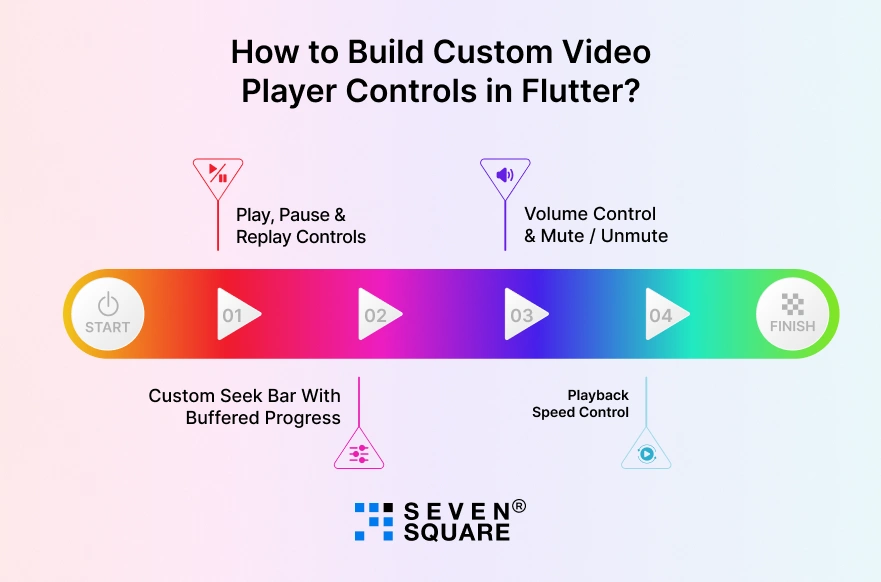
This is where your app becomes powerful. Custom controls improve usability, branding, and engagement.
1. Play, Pause & Replay Controls
        GestureDetector(
          onTap: () {
          setState(() {
            _controller.value.isPlaying
                ? _controller.pause()
                : _controller.play();
          });
          },
          child: Icon(
          _controller.value.isPlaying ? Icons.pause : Icons.play_arrow,
          size: 48,
          color: Colors.white,
          ),
        )
This handles Flutter play pause seek video behavior smoothly with controller state sync.
2. Custom Seek Bar With Buffered Progress
        VideoProgressIndicator(
          _controller,
          allowScrubbing: true,
          colors: VideoProgressColors(
          playedColor: Colors.red,
          bufferedColor: Colors.grey,
          backgroundColor: Colors.black26,
          ),
        )
This shows:
- Play duration.
- Buffered duration.
- Smooth dragging without glitches.
A key UX improvement is missing in default players.
3. Volume Control & Mute / Unmute
        bool isMuted = false;

        IconButton(
          icon: Icon(
          isMuted ? Icons.volume_off : Icons.volume_up,
          color: Colors.white,
          ),
          onPressed: () {
          setState(() {
            isMuted = !isMuted;
            _controller.setVolume(isMuted ? 0 : 1);
          });
          },
        )
This supports Flutter video player mute unmute, perfect for social media feeds and learning apps.
4. Playback Speed Control
        DropdownButton(
          value: _controller.value.playbackSpeed,
          dropdownColor: Colors.black,
          items: [0.5, 1.0, 1.5, 2.0]
            .map(
              (speed) => DropdownMenuItem(
                value: speed,
                child: Text('${speed}x',
                    style: const TextStyle(color: Colors.white)),
              ),
            )
            .toList(),
          onChanged: (speed) {
          if (speed != null) {
            _controller.setPlaybackSpeed(speed);
          }
          },
        )
This is a real Flutter video player change playback speed example used widely in eLearning apps.
How to Implement Full screen Video & Orientation Handling Like YouTube?
Full screen playback is important for modern video apps.
Full screen Toggle Implementation
        void enterFullScreen() {
          SystemChrome.setEnabledSystemUIMode(SystemUiMode.immersive);
          SystemChrome.setPreferredOrientations([
          DeviceOrientation.landscapeLeft,
          DeviceOrientation.landscapeRight,
          ]);
        }

        void exitFullScreen() {
          SystemChrome.setEnabledSystemUIMode(SystemUiMode.edgeToEdge);
          SystemChrome.setPreferredOrientations([
          DeviceOrientation.portraitUp,
          ]);
        }
Use this inside a full screen button:
        IconButton(
          icon: const Icon(Icons.fullscreen, color: Colors.white),
          onPressed: enterFullScreen,
        )
This creates a Flutter video player full screen example similar to YouTube.
Here’s the Complete GitHub Code to Build a Video Player With Custom Controls in Flutter.
How Do We Build Customized Flutter Apps?
- We develop Flutter video player custom controls for play, pause, seek, volume, speed, and full screen.
- Our team uses the video_player package Flutter to create scalable, production-ready video solutions.
- We optimize Flutter video player performance for smooth streaming, minimal buffering, and faster load times.
- We design Flutter video players with custom controls that match your brand and improve user engagement.
Want to Build a Scalable Flutter App? Contact Us Today!
Is Building a Custom Video Player in Flutter Worth It?
If your app relies on video for engagement, learning, or monetization, building a custom solution is absolutely worth it.
Custom controls give you full ownership of the user experience and branding.
For OTT platforms, eLearning apps, and enterprise solutions, a custom video player UI in Flutter scales far better than default players.
It allows feature expansion, performance tuning, and long-term flexibility.
By building on the Flutter video player with custom controls, you future-proof your app and create a video experience that truly stands out.
FAQs
- Yes. With custom controls, Flutter can build advanced video player UIs similar to YouTube, including gestures, mini players, & full screen modes.
- Yes, the video_player package is widely used in production apps when combined with a well-structured custom UI and performance optimizations.
- You can improve performance by handling buffering states properly, reusing controllers, optimizing network streams, and avoiding unnecessary rebuilds.
- Yes. A custom Flutter video player architecture makes it easier to integrate ads, analytics, or DRM-based secure streaming in the future.