Confused about where to start in Flutter?
Here’s how I approach building apps, from creating a project to managing state, based on my real Flutter app development experience.
To be honest, this is the first time I’m writing something like this. I’m more comfortable solving bugs and building apps than explaining things in words.
Today, I will explain how I approach Flutter app development, so I thought I’d just keep it real and simple.
When I started Flutter app development, the first thing I understood was that Flutter lets you build Android, iOS, and web apps using a single codebase. That was a big plus for me.
Not just theory, but real steps, like how to set up a project, understand the Flutter app structure, and handle basic things like state.
So instead of making this a perfect guide, I’m writing this like how I learned, Step by step, with practical examples.
In this blog, I’ll explain how to build an app in Flutter, the way I personally do it while working on projects.
If you’re new or just getting started, this might feel more like a developer sharing his notes than a typical blog, and that’s exactly what I’m going for.

How Does the Flutter App Structure Work?
Before building anything, I tried to understand the Flutter app structure.
- main(): Starting point of the app.
- MaterialApp: Root of the app.
- Scaffold: Basic UI layout.
Once this became clear, creating screens felt much easier.
Understanding Widgets in Simple Words
In Flutter, everything is a widget. There are two main types:
- StatelessWidget.
- StatefulWidget.
At first, I was confused, but later I realized it’s actually simple.
StatelessWidget vs StatefulWidget
This is something every beginner searches for.
1. StatelessWidget
I use this when the UI doesn’t change. For example:
- Static text.
- Simple screens without updates.
In simple words: If nothing changes on the screen after loading, then use StatelessWidget.
2. StatefulWidget
This is what I use most of the time. Whenever:
- Data changes.
- UI updates.
- API data loads.
Then StatefulWidget comes into play.
In simple words: If something changes on the screen, then use StatefulWidget.
How to Install Flutter SDK? (Windows & Mac)
Before starting Flutter app development, you need to install the Flutter SDK.
- On Windows, you get x64 option
- On Mac, you get:
- x64 (Intel)
- arm64 (M1, M2, M3, M4 chips)
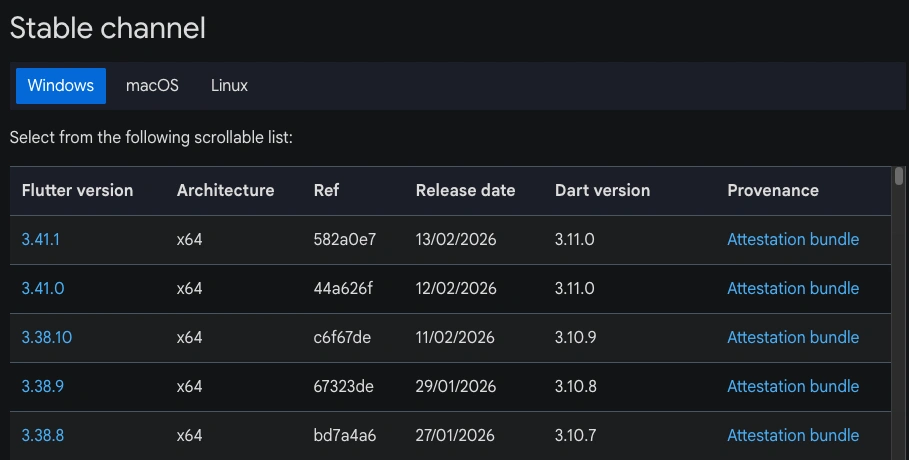
If you’re using a Mac with an M-series chip, go with arm64.
This is the first step in how to install Flutter on Windows and Mac. You can download Flutter from: https://docs.flutter.dev/install/archive
Just follow the steps, and you’ll be good.
Are You Planning to Build a Flutter App but not Sure Where to Start?
Code Editors I Tried
For Flutter, you mainly use:
- Android Studio
- Visual Studio Code
Personally, I use Android Studio because it feels more complete for setup and emulators.
How to Install Android Studio for Flutter Development?
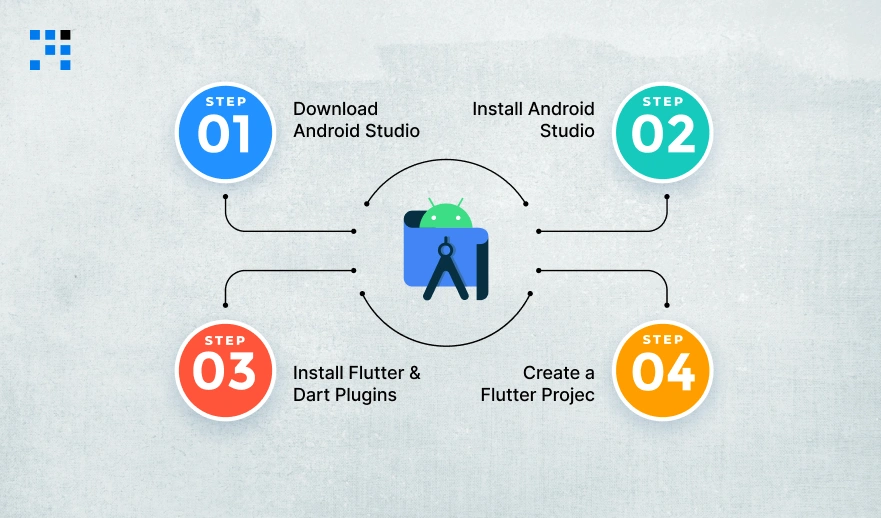
When I was starting Flutter app development, setting up Android Studio felt confusing. But once I did it step by step, it was actually simple. Let me explain it the way I followed:
Step 1: Download Android Studio
First, you need to download Android Studio from the official website:
https://developer.android.com/studio
What to do:
- Open the website
- Click on “Download Android Studio”
- Accept the terms & conditions
- It will start downloading the installer
Choose based on your system:
- Windows: .exe file
- macOS: .dmg file
Just download the file according to your system. Nothing complicated here.
Step 2: Install Android Studio
Now comes the installation part. I’ll explain both Windows and macOS.
For Windows Users
- Open the downloaded .exe file
- Click Next
You’ll see some options, make sure these are selected:
- Android Studio
- Android Virtual Device (important for emulator)
- Click Next → Install
- Wait for installation (it may take a few minutes)
- Click Finish
After this, Android Studio will open automatically.
For macOS Users
- Open the downloaded .dmg file.
- Drag Android Studio into the Applications folder.
- Open it from Applications.
That’s it. Installation is done.
Step 3: Install Flutter & Dart Plugins
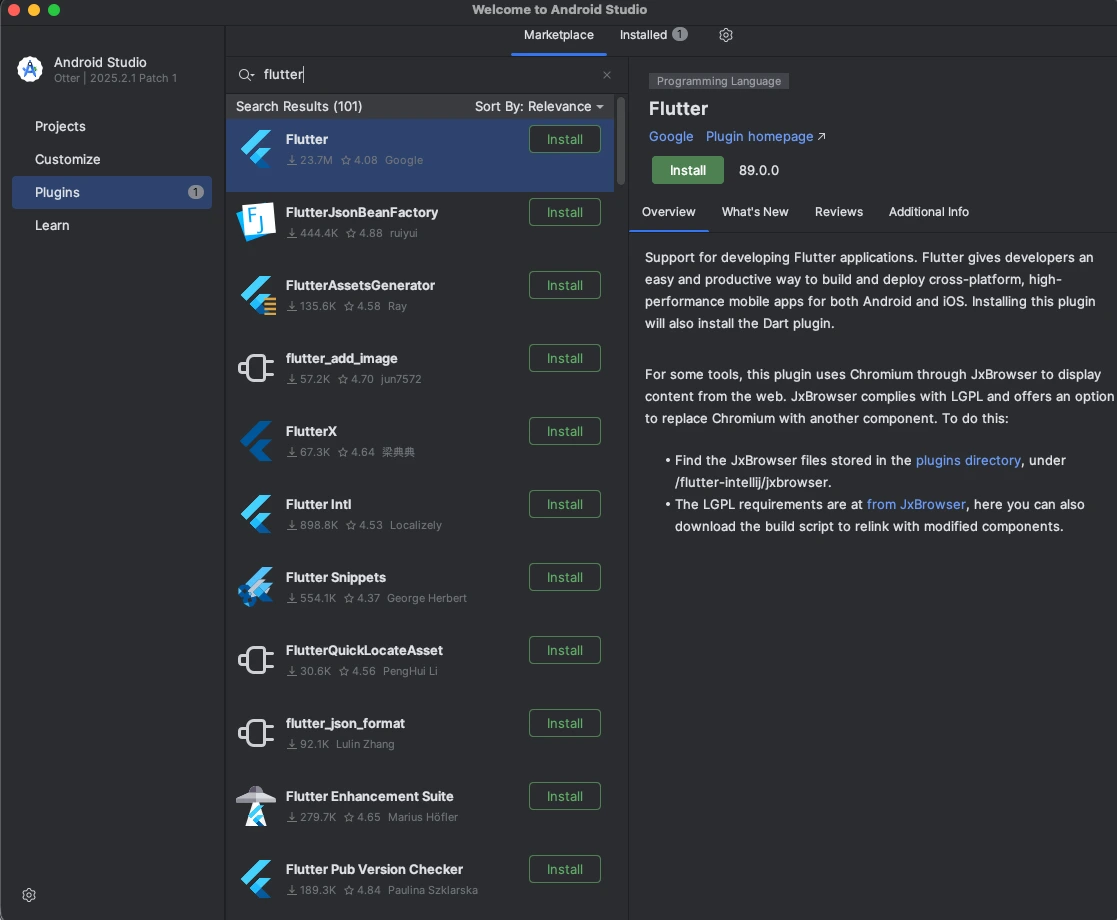
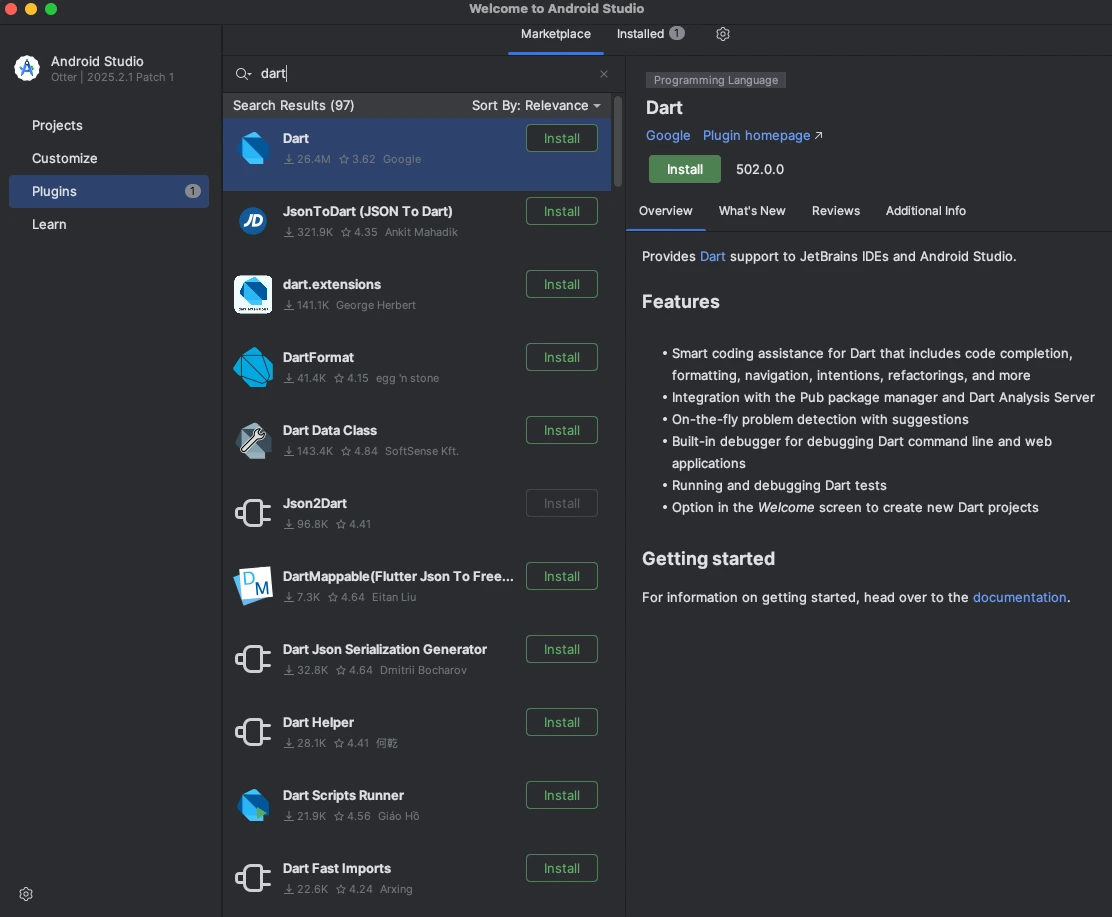
Before creating a project, you need two important plugins:
- Flutter
- Dart
Steps I followed:
- Open Android Studio
- Go to Plugins
- Search for:
- Flutter → Install
- Dart → Install (it usually installs with Flutter)
- Restart Android Studio
Without these plugins, you won’t be able to create a Flutter project.
Step 4: Create a Flutter Project (Step-by-Step)
Now comes the main part: How to create a Flutter project step by step.
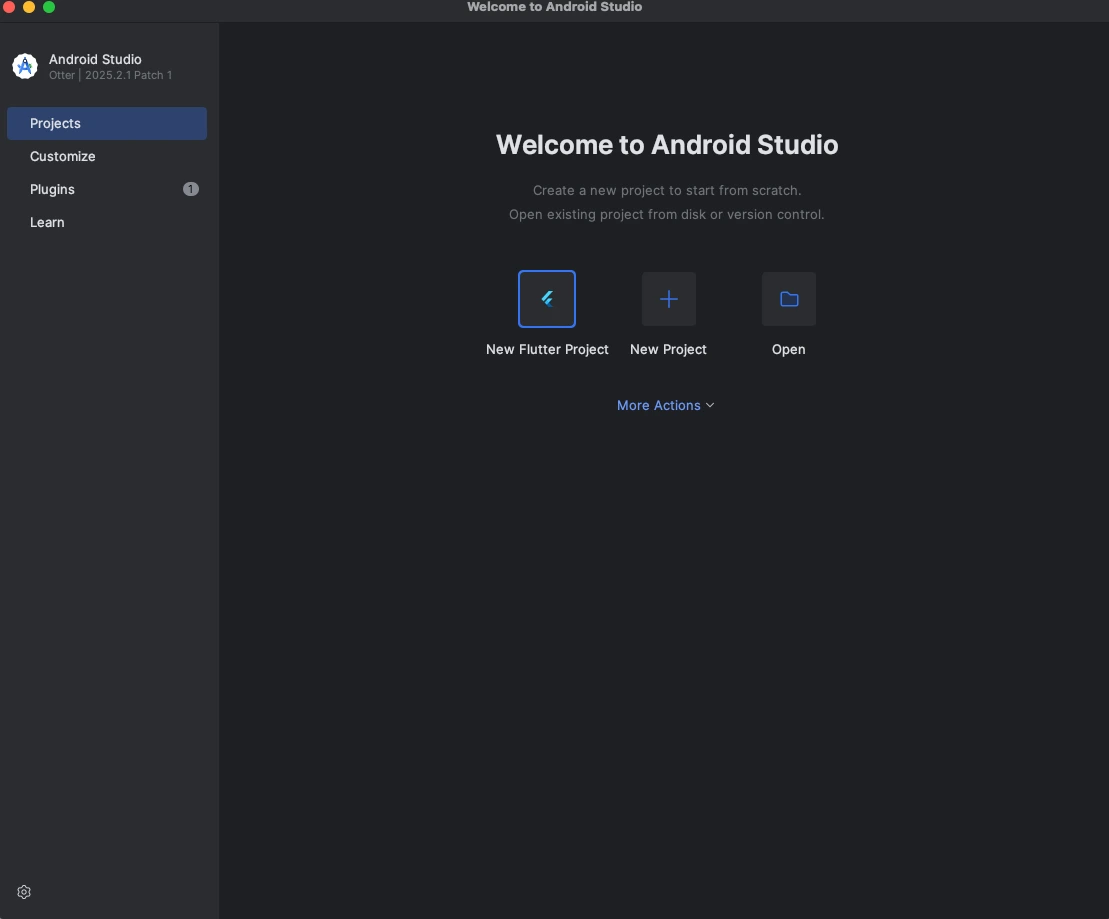
1. Start New Project
- Open Android Studio
- Click on “New Flutter Project”
If you don’t see this option, it means the Flutter plugin is not installed properly.
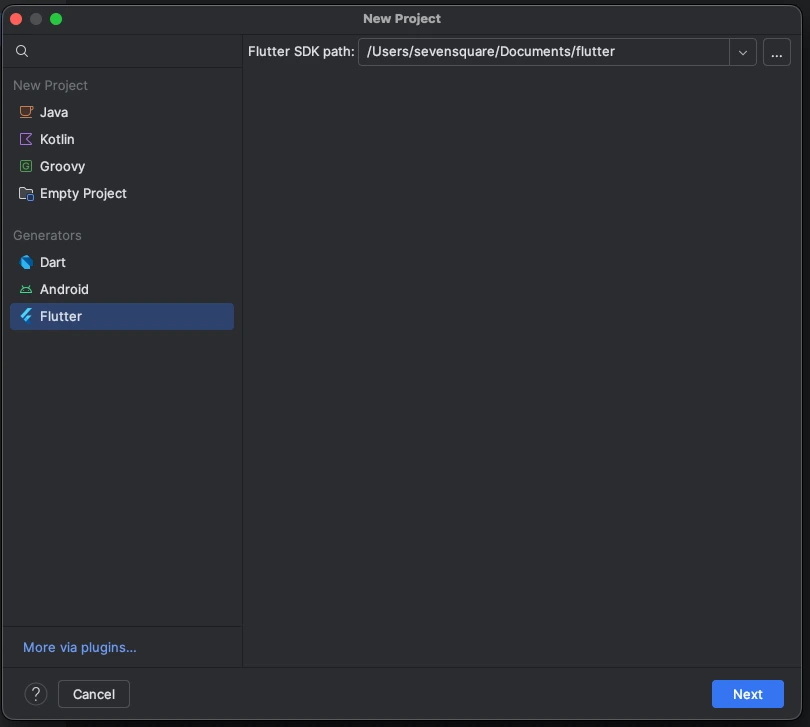
2. Configure Project
After clicking, you’ll see a setup screen. Fill these details:
- Flutter SDK Path: Select your installed Flutter folder.
- Project Name: Give any name (example: my_first_app).
- Project Description: Optional.
Click Next
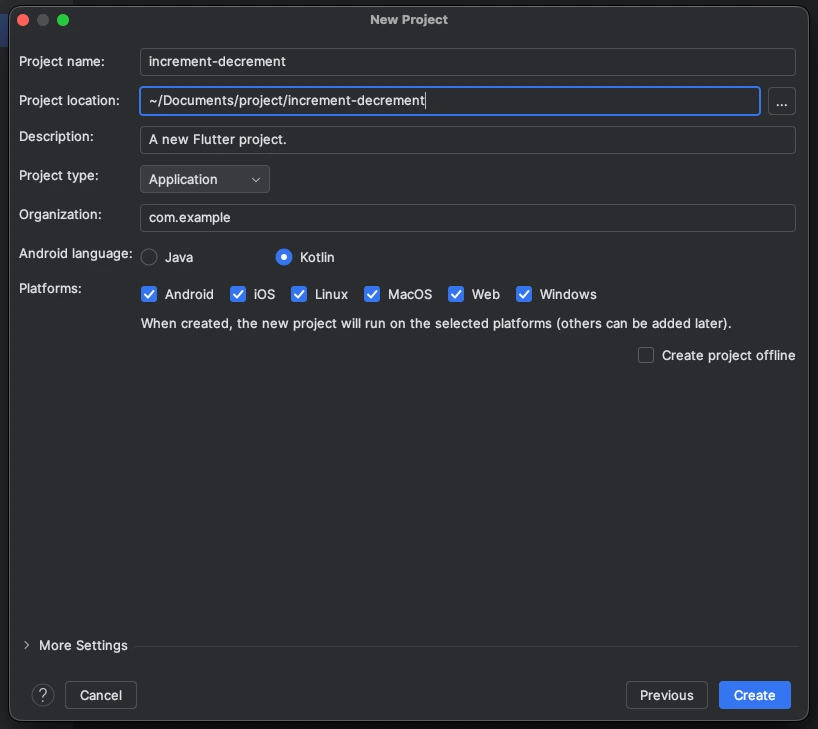
3. Choose Project Location
Now you’ll see the option to select where your project will be saved.
What I did:
- Click on the three dots (… button).
- It will open your system folders.
- Choose any folder where you want to store your project.
Example:
- Documents
- Desktop
- Projects folder
Click Next then Finish.

4. Project Creation
After clicking finish:
- Android Studio will create your project.
- It will set up all files automatically.
- You’ll see a default sample app.
This is your first working Flutter app project setup.
When I created my first project, I didn’t understand all the fields, and that’s okay. You can keep most settings as the default and still run your app.
Here’s How You Can Design & Develop Uber Eats Clone in Flutter.
What is Flutter Project Structure? (Important Files You Should Know)
When I started Flutter app development, understanding the Flutter project structure helped me a lot.
At first, it looks confusing, but once you know what each folder does, it becomes easy to manage your app.
Here are the main files and folders you should focus on:

lib/ (Main Code Folder)
This is the most important folder in your project. All your app code goes inside the lib folder. What you usually add here:
- Screens (UI).
- Widgets.
- Business logic.
- State management files.
If you are building a real app, almost everything you write will be inside lib/.
main.dart (Starting Point of App)
This is the first file that runs when your app starts. It is the entry point of your Flutter app. What it does:
- Calls the main() function.
- Run your app using runApp().
- Connect your UI with the app.
Whenever you want to understand how your app starts, check main.dart.
pubspec.yaml (Dependencies & Assets File)
This file is very important in Flutter app development. It is used to manage:
- External libraries (packages).
- Images and assets.
- Fonts.
Example: If you want to use a library like Provider, you add it here. If you want to use images, you define their path here.
Everything your app depends on is managed in pubspec.yaml.
android/ (Android App Configuration)
This folder is used for Android-specific settings. Inside this folder, you will find important files like:
- AndroidManifest.xml: Used for permissions (camera, internet, etc.).
- build.gradle: Used for app version, dependencies, and build settings.
You don’t use this folder daily, but it’s important when:
- Adding permissions.
- Changing app name or version.
- Configuring Android settings.
ios/ (iOS App Configuration)
This folder is similar to the Android folder but for iOS. It contains iOS-specific configurations like:
- App permissions.
- App settings.
Important file:
- Info.plist: Used to add permissions (camera, location, etc.)
Path:
ios/Runner/Info.plist
If your app needs permissions on iOS, you will update this file.
How Flutter State Management Works?
Before you start building a real app in Flutter app development, one important concept you should understand is Flutter state management.
When I started, this part was confusing for me. But once I understood it in a simple way, things became much easier.
What is State Management in Flutter?
In simple words:
- State: Data that changes in your app.
- State Management: Handling that data and updating UI properly.
Example:
- You click a button.
- Counter value increases.
- UI updates instantly.
This whole process is called state management in Flutter.
Types of Flutter State Management
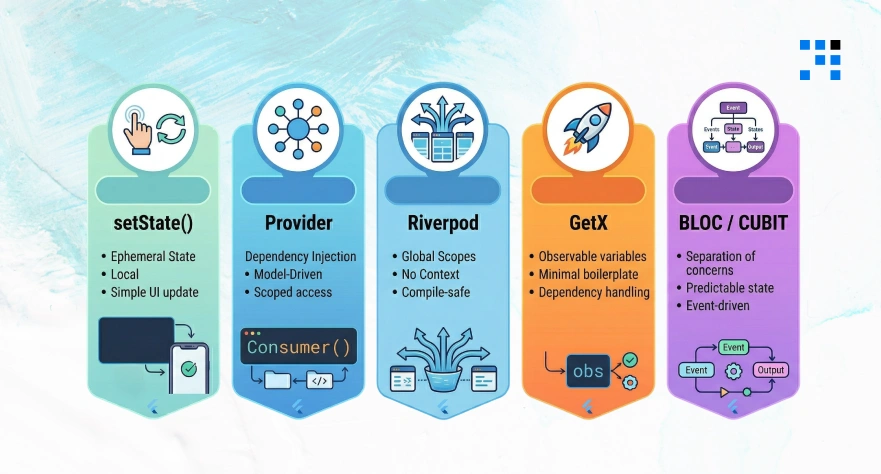
There are many ways to handle state in Flutter. Here are the most commonly used options:
- setState (Built-in): Best for small apps.
- Provider: Beginner-friendly and widely used.
- Riverpod: Advanced version of Provider.
- GetX: Simple and fast.
- Bloc / Cubit: Used in large-scale apps.
If you’re just starting, I suggest using Provider state management in Flutter.
Why State Management is Important?
Without proper state management:
- UI may not update correctly.
- Data may not sync properly.
- The app may feel buggy.
With good Flutter state management:
- UI updates smoothly.
- Code is clean and organized.
- App performance improves.
Provider State Management Flutter
To understand better, let’s look at a simple Flutter app example code using Provider.
This is a Flutter increment decrement example with Provider, which is great for beginners.
File: lib/main.dart (UI / Design)
                import 'package:flutter/material.dart';
                import 'package:provider/provider.dart';
                import 'counter_notifier.dart';

                void main() {
                runApp(
                        ChangeNotifierProvider(
                        create: (_) => CounterNotifier(),
                        child: MyApp(),
                        ),
                );
                }

                class MyApp extends StatelessWidget {
                @override
                Widget build(BuildContext context) {
                        return MaterialApp(
                        title: 'Counter App',
                        home: MainScreen(),
                        );
                }
                }

                class MainScreen extends StatelessWidget {
                @override
                Widget build(BuildContext context) {
                        final counter = Provider.of<CounterNotifier>(context);

                        return Scaffold(
                        appBar: AppBar(title: Text('Increment Decrement')),
                        body: Center(
                        child: Column(
                        mainAxisAlignment: MainAxisAlignment.center,
                        children: [
                                Text('Count:', style: TextStyle(fontSize: 24)),
                                Text('${counter.count}', style: TextStyle(fontSize: 48)),
                                Row(
                                mainAxisAlignment: MainAxisAlignment.center,
                        children: [
                                ElevatedButton(
                                onPressed: counter.decrement,
                                child: Text('-'),
                                ),
                                SizedBox(width: 20),
                                ElevatedButton(
                                onPressed: counter.increment,
                                child: Text('+'),
                                ),
                                ],
                                ),
                        ],
                        ),
                        ),
                        );
                }
                }
File: lib/counter_notifier.dart (Logic)
                import 'package:flutter/material.dart';
                class CounterNotifier extends ChangeNotifier {
                int _count = 0;

                int get count => _count;

                void increment() {
                        _count++;
                        notifyListeners();
                }

                void decrement() {
                        _count--;
                        notifyListeners();
                }
                }
How Does This Provider Example Work?
Let me explain this in a simple way:
- CounterNotifier stores the counter value.
- When you click + or − button → function is called.
- Value updates.
- notifyListeners() tells UI to refresh.
- UI automatically updates.
This is how Provider state management in Flutter connects UI and logic.
Are Your Facing Issues While Setting Up Your Flutter Project?
How to Run Your Flutter App? (Emulator & Simulator)
After completing your code in Flutter app development, the next step is to run and test your app. In Flutter, you have three main options to run your app:
- Real Device (Physical device).
- Emulator.
- Simulator.
Each option is useful depending on your system and testing needs.
What is an Emulator in Flutter?
An Emulator is a virtual Android device that runs on your computer. It is mainly used for testing Android apps during Flutter app development.
Key Features of Emulator:
Works on Windows and macOS Can simulate hardware features like:
- Camera.
- GPS.
- Location.
Allows you to test different Android devices without having them physically.
When to use an Emulator?
- When you don’t have a physical Android device.
- For quick testing during development.
- For testing different screen sizes.
In simple words: Emulator = Virtual Android phone on your system.
What is a Simulator in Flutter?
A Simulator is used to run iOS apps on your system. It is available only on macOS because iOS development requires Apple’s environment.
Key Features of Simulator:
- Works only on macOS.
- Used for testing iOS apps.
Does NOT fully support hardware features like:
- Camera.
- GPS.
When to use a Simulator?
- When you are building iOS apps.
- For basic UI and layout testing.
In simple words: Simulator = Virtual iPhone (but limited hardware support).
FAQs
- Flutter app development is the process of building mobile, web, and desktop apps using a single codebase with Flutter.
- It helps developers create apps faster for Android and iOS.
- A Flutter emulator is a virtual Android device used to test apps on your system.
- It supports features like camera, GPS, and works on Windows and macOS.
- A Flutter simulator is used to test iOS apps.
- It works only on macOS and has limited hardware support compared to an emulator.
- Yes, with Flutter app development, you can build both Android and iOS apps using a single codebase, which saves time and effort.