Flutter is fast. Until it’s not. Everything works smoothly when your UI is simple.
But once your app grows, complex dashboards, animations, charts, & large lists, you suddenly see:
- FPS drops.
- UI jank.
- Frame skipping.
- Slow scrolling.
- Overheating devices.
This is where Flutter rendering performance becomes a real problem.
Flutter needs to rebuild, layout, and paint widgets every frame (ideally within 16ms to maintain 60 FPS). When your UI becomes heavy:
- Too many widgets rebuild together.
- Layout passes increase.
- Paint operations stack up.
- GPU compositing gets expensive.
Suddenly, your app can’t maintain the frame budget. That’s when Flutter performance optimization becomes important. By default, Flutter rebuilds at the widget level.
If you’re not careful, small state changes can trigger large UI rebuilds. This is exactly where a Hybrid Rendering Strategy in Flutter becomes useful.
Here in this blog, you can learn to implement a Hybrid Rendering Strategy in Flutter with Complete Code.
What Is the Flutter Rendering Pipeline? (Before We Optimize It)
Before implementing any hybrid solution, you must understand how the Flutter rendering pipeline works. Here’s the simplified flow:
Widget → Element → RenderObject → Layout → Paint → Compositing → GPU
- Widget: Blueprint (configuration)
- Element: Manages lifecycle
- RenderObject: Does the heavy work (layout + paint)
Most performance problems happen at the RenderObject level. That’s why RenderObject optimization is key in advanced performance tuning.
The Three Critical Phases
- Layout Phase: Calculates the size and position of widgets. Heavy nested layouts = expensive.
- Paint Phase: Draws pixels on the screen. Complex painting = GPU pressure.
- Compositing Phase: Combines layers for display. Too many layers = memory + performance cost.
What Is a Hybrid Rendering Strategy in Flutter?

A Hybrid Rendering Strategy in Flutter means:
Combining default widget rendering with custom rendering techniques to optimize performance. Instead of letting Flutter rebuild everything, you strategically:
- Isolate repaint areas.
- Use custom RenderObjects.
- Separate static and dynamic layers.
- Reduce unnecessary rebuilds.
Hybrid Rendering vs Default Flutter Rendering
Default rendering:
- Easy to use.
- Declarative.
- Great for most apps.
But not optimized for heavy dynamic UI.
Flutter hybrid rendering:
- More control.
- Better performance.
- Fine-grained rendering management.
How Our Developers Implement Hybrid Rendering in Flutter to Build High-Performing Apps?
- We design a scalable hybrid rendering strategy in Flutter to improve complex app rendering performance and maintain stable FPS.
- Our team specializes in Flutter performance optimization for dashboards, charts, animations, and real-time applications.
- We deeply analyze the Flutter rendering pipeline to eliminate rebuild storms and unnecessary paint cycles.
- Our developers implement advanced RenderObject optimization techniques for performance-critical enterprise Flutter applications.
Do You Want to Optimize Your Flutter App With Hybrid Rendering?
Step-by-Step: Implementing Hybrid Rendering in Flutter (With Code)
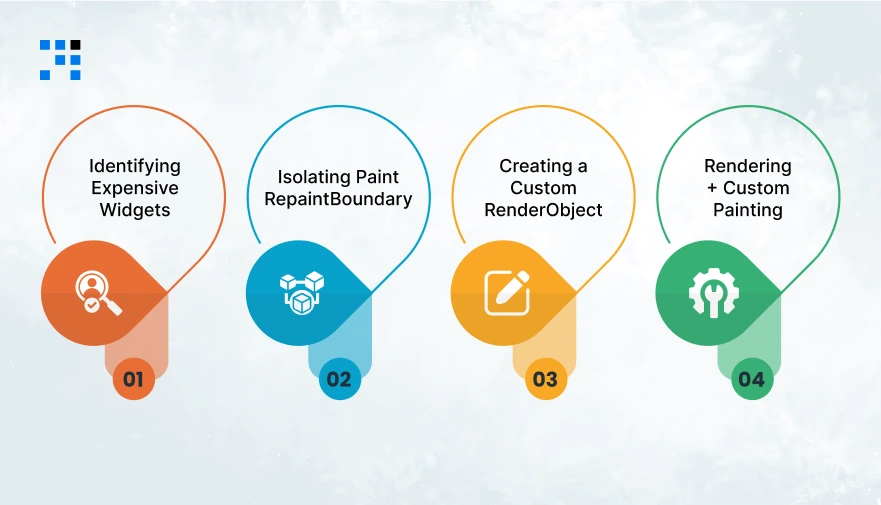
Here we’ll implement a Hybrid Rendering Strategy in Flutter that updates frequently without dropping FPS.
Step 1: Identifying Expensive Widgets
Before writing any hybrid rendering code, we must detect performance issues.
Profiling with Flutter DevTools
Run your app in profile mode:
flutter run --profile
Open DevTools:
flutter pub global run devtools
In the Performance Tab:
Look for:
- Frames exceeding 16ms.
- High layout time.
- Large paint time.
- Frequent rebuilds.
Example Problem Widget (Expensive Dashboard)
Here’s a typical problematic widget:
                class ExpensiveDashboard extends StatefulWidget {
                @override
                _ExpensiveDashboardState createState() => _ExpensiveDashboardState();
                }

                class _ExpensiveDashboardState extends State {
                int counter = 0;

                @override
                void initState() {
                        super.initState();
                        Future.delayed(Duration(milliseconds: 100), updateCounter);
                }

                void updateCounter() {
                        setState(() {
                        counter++;
                        });
                        Future.delayed(Duration(milliseconds: 100), updateCounter);
                }

                @override
                Widget build(BuildContext context) {
                        return Column(
                        children: [
                        Text("Live Counter: $counter"),
                        HeavyAnimatedWidget(counter: counter),
                        ],
                        );
                }
                }
Problem:
- Every 100ms, the entire widget rebuilds. This creates rebuild storms, layout thrashing, and poor Flutter rendering performance.
Now let’s fix this using a Hybrid Rendering Strategy in Flutter.
Step 2: Isolating Paint Areas with RepaintBoundary
RepaintBoundary tells Flutter: “Only repaint this section if needed.”
Optimized Version:
                class OptimizedDashboard extends StatefulWidget {
                @override
                _OptimizedDashboardState createState() => _OptimizedDashboardState();
                }

                class _OptimizedDashboardState extends State {
                int counter = 0;

                @override
                void initState() {
                        super.initState();
                        Future.delayed(Duration(milliseconds: 100), updateCounter);
                }

                void updateCounter() {
                        setState(() {
                        counter++;
                        });
                        Future.delayed(Duration(milliseconds: 100), updateCounter);
                }

                @override
                Widget build(BuildContext context) {
                        return Column(
                        children: [
                        Text("Live Counter: $counter"),

                        // Hybrid Rendering Isolation
                        RepaintBoundary(
                        child: HeavyAnimatedWidget(counter: counter),
                        ),
                        ],
                        );
                }
                }
This improves Flutter performance optimization immediately.
Step 3: Creating a Custom RenderObject
Now we move beyond widgets. This is where RenderObject optimization begins. We will create a custom high-performance drawing component.
Custom RenderObject Example
Step A: Create a LeafRenderObjectWidget
                import 'package:flutter/rendering.dart';
                import 'package:flutter/widgets.dart';
                import 'dart:math';

                class HybridChart extends LeafRenderObjectWidget {
                final double value;

                const HybridChart({required this.value});

                @override
                RenderObject createRenderObject(BuildContext context) {
                        return RenderHybridChart(value);
                }

                @override
                void updateRenderObject(
                        BuildContext context, RenderHybridChart renderObject) {
                        renderObject.value = value;
                }
                }
Step B: Implement Custom RenderObject
                class RenderHybridChart extends RenderBox {
                double _value;

                RenderHybridChart(this._value);

                set value(double newValue) {
                        if (_value != newValue) {
                        _value = newValue;
                        markNeedsPaint(); // Only repaint, no layout
                        }
                }

                @override
                void performLayout() {
                        size = constraints.biggest;
                }

                @override
                void paint(PaintingContext context, Offset offset) {
                        final canvas = context.canvas;

                        final paint = Paint()
                        ..color = const Color(0xFF2196F3)
                        ..style = PaintingStyle.fill;

                        final radius = size.width * (_value / 100);

                        canvas.drawCircle(
                        offset + Offset(size.width / 2, size.height / 2),
                        radius,
                        paint,
                        );
                }
                }
This is true Flutter hybrid rendering example code.
Step 4: Mixing Widget Rendering + Custom Painting
Now we combine:
- Default Flutter widgets.
- Custom RenderObject rendering.
This is the core of Flutter hybrid rendering.
Full Hybrid Example
                class HybridRenderingDashboard extends StatefulWidget {
                @override
                _HybridRenderingDashboardState createState() =>
                        _HybridRenderingDashboardState();
                }

                class _HybridRenderingDashboardState
                        extends State {
                double value = 10;

                @override
                void initState() {
                        super.initState();
                        animate();
                }

                void animate() {
                        Future.delayed(Duration(milliseconds: 100), () {
                        setState(() {
                        value = (value + 5) % 100;
                        });
                        animate();
                        });
                }

                @override
                Widget build(BuildContext context) {
                        return Column(
                        children: [
                        const Text(
                        "Hybrid Rendering Performance Demo",
                        style: TextStyle(fontSize: 20),
                        ),

                        const SizedBox(height: 20),

                        // Custom RenderObject
                        SizedBox(
                        width: 200,
                        height: 200,
                        child: HybridChart(value: value),
                        ),
                        ],
                        );
                }
                }
This approach:
- Keeps UI declarative.
- Uses optimized painting.
- Avoids deep widget rebuilds.
- Improves FPS.
Perfect for dashboards, charts, and gaming-like UI.
Here’s the
Hybrid Rendering vs Default Rendering: What’s the Real Difference?
| Feature | Default Rendering | Hybrid Rendering |
| Performance | Good for simple apps | Optimized for complex, high-performance UI |
| Control Level | Limited control | Fine-grained rendering control |
| Rebuild Scope | Larger rebuild areas | Isolated repaint and rebuild zones |
| Complexity | Easy to implement | Advanced architecture required |
| Best Use Case | CRUD apps, forms | Dashboards, charts, animations, gaming UI |
For businesses building scalable apps, hybrid rendering provides long-term performance stability.
When Should You Use Hybrid Rendering in Flutter Apps?
Use hybrid rendering when your app includes:
- Animation-Heavy UI: Multiple animated components updating every frame.
- Real-Time Dashboards: Stock market apps, analytics panels, monitoring systems.
- Complex Charts: Continuously updating graphs and visualizations.
- Gaming-Like Interactions: High frame-rate interaction-driven UI.
- Large Scrolling Surfaces: Thousands of dynamically updating items.
Is Hybrid Rendering the Future of Flutter Performance Optimization?
Hybrid rendering is not a replacement for default Flutter rendering. It’s a strategic improvement.
When Does It Make Sense?
- You hit performance limits.
- FPS drops consistently.
- DevTools shows layout + paint overload.
- Your app scales in complexity.
Performance Trade-Offs
- More architectural complexity.
- Higher development effort.
- Requires deep Flutter knowledge.
Scalability Advantages
- Stable FPS under load.
- Better memory management.
- Controlled rendering cycles.
- Enterprise-grade performance.
For startups and businesses building performance-critical apps, a Hybrid Rendering Strategy in Flutter can be a competitive advantage.
FAQs
- To optimize Flutter rendering performance with a hybrid strategy, isolate repaint areas, use custom RenderObjects, reduce rebuild scope, & separate static and dynamic layers.
- Combine default widgets with manual rendering control for better FPS.
- Yes, hybrid rendering can improve Flutter FPS in complex apps by minimizing unnecessary layout and paint operations.
- It helps maintain frame budget under heavy UI load.
- Custom rendering can be faster when properly implemented because it gives fine-grained control over layout and painting.
- However, it increases complexity and should only be used for performance-critical UI.
- Use Flutter DevTools performance tab to monitor frame time, repaint areas, and layout cycles.
- Identify bottlenecks in the Flutter rendering pipeline and optimize expensive widgets or rendering logic.