Struggling with a slow WordPress website?
Here’s how I optimized performance using lightweight themes, image optimization, caching, and PageSpeed insights step by step.
Most of the time, my work as a WordPress developer happens quietly in the background: Improving websites, fixing issues, & making sure everything runs smoothly.
Many websites work fine functionally, but their performance is not optimized. As a developer, improving speed becomes an important part of the job.
In this blog, I’ll share how I improved the speed of a WordPress website and what steps I usually follow when a site becomes slow.
The Problems I Faced During WordPress Performance Optimization
One of the websites I was working on had very slow loading speed.
When users visited the website, pages took too long to load. This created a poor user experience, and visitors could leave the website before it even finished loading.
Another issue was SEO. Slow websites often rank lower on search engines like Google. So performance was not only affecting users but also the website’s visibility.
Because of this, optimizing the website performance became a priority.
What’s My Approach to Fix these Problems?
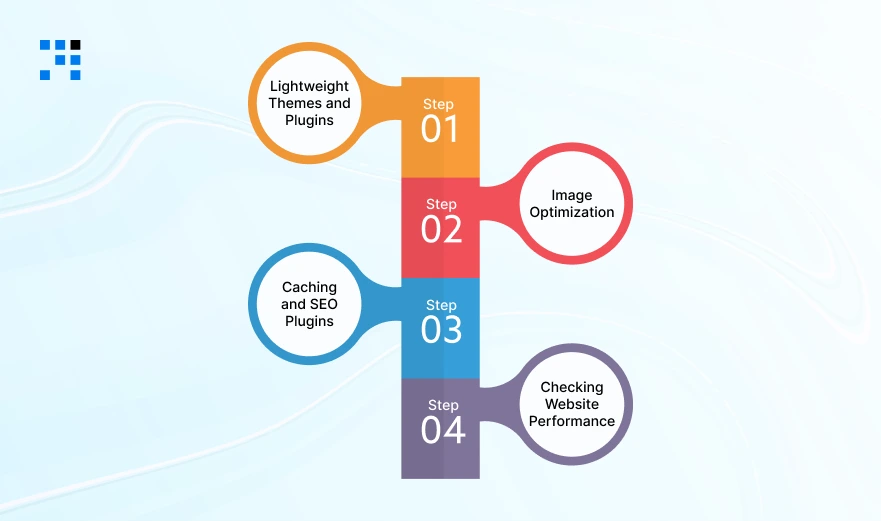
To improve the website’s performance, I worked on several areas such as:
- Using lightweight themes and plugins.
- Optimizing images.
- Removing unused CSS and JavaScript.
- Adding caching and SEO plugins.
- Checking performance reports regularly.
These steps helped us significantly improve the website loading speed.
Is Your WordPress Website Facing Slow Loading Issues?
Step 1: Choosing Lightweight Themes and Plugins
One of the first things I noticed was that the website was using a heavy theme with many unnecessary features.
Heavy themes load many scripts and styles, which increases the page load time.
After some research, I decided to switch to lightweight and SEO-friendly themes. Some themes that work really well for performance are:
These themes are designed to be fast and flexible.
I also reviewed the plugins installed on the website. Sometimes websites have too many plugins for small features, and each plugin adds extra load.
Whenever possible, I prefer removing unnecessary plugins and writing small custom functions instead. This helps keep the website lighter and faster.
Step 2: Image Optimization
From my experience, images are one of the biggest reasons websites become slow.
Many websites upload large images without optimizing them first, which increases the page size.
So image optimization is something I always prioritize. I usually follow two approaches.
Using an Image Optimization Plugin
- One easy way to optimize images is by using a plugin. A plugin I often use is EWWW Image Optimizer.
This plugin automatically compresses images when they are uploaded. It reduces file size while maintaining image quality, which helps improve website loading speed.
Manual Image Optimization
- Sometimes I also optimize images manually.
- Instead of uploading JPEG or PNG files, I convert images into WebP format before uploading them to the website.
- WebP images are usually 25 to 35% smaller than JPEG or PNG files while maintaining similar quality.
This makes pages load faster, especially on image-heavy websites.
Step 3: Using Caching and SEO Plugins
Another important step in improving performance is using the right plugins for caching and SEO.

For SEO, I use Yoast SEO. It helps manage important SEO elements such as:
- Custom page titles.
- Meta descriptions.
- Meta tags.
- Schema integration.
It also provides real-time content analysis which helps improve the SEO quality of pages and posts.
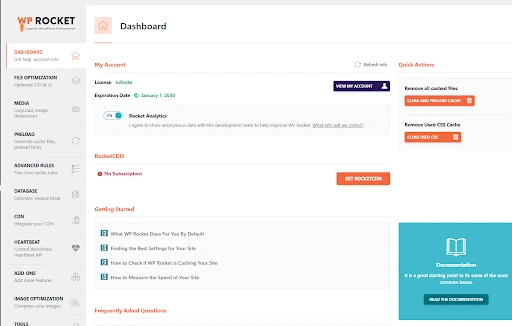
For caching and performance improvements, I use WP Rocket. This plugin helps with:
- Page caching.
- File optimization.
- Faster page loading.
Caching allows the website to load pre-generated pages instead of rebuilding them every time, which improves speed significantly.
Step 4: Checking Website Performance with PageSpeed Insights
After making optimization changes, I always check the website performance using Google PageSpeed Insights.
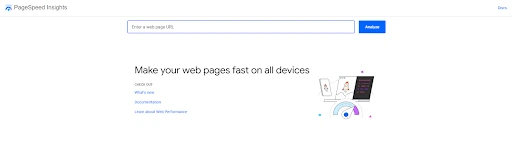
This tool provides a detailed performance report and shows what improvements can still be made.
It also shows separate results for mobile and desktop, which helps optimize the website for different devices.
PageSpeed Insights also measures important performance metrics.

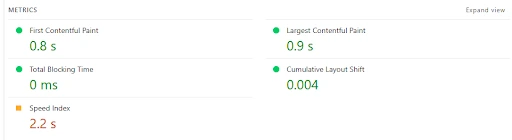
- Largest Contentful Paint (LCP): LCP measures how quickly the main content of a webpage becomes visible to users. A faster LCP means users can see the main content sooner.
- Interaction to Next Paint (INP): INP measures how quickly the website responds when users interact with it like clicking buttons or typing in forms.
- Cumulative Layout Shift (CLS): CLS measures how much the layout shifts while the page loads. For a good experience, the CLS score should be 0.1 or lower.
- First Contentful Paint (FCP): FCP measures how long it takes for the first visible element like text or images to appear on the screen.
- Time to First Byte (TTFB): TTFB measures how long the server takes to send the first response to the browser after a request is made.
These metrics help identify exactly where performance improvements are needed.
Want an Optimized WordPress Website?
How This Improves Website Performance?

Website speed plays a very important role in both user experience and search engine ranking.
A slow website can frustrate visitors and reduce visibility on search engines, which can directly affect website traffic and business growth.
From my experience as a WordPress developer, optimizing performance usually comes down to a few key practices:
- Using lightweight themes.
- Reducing unnecessary plugins.
- Optimizing images.
- Removing unused CSS and JavaScript.
- Using caching and SEO tools.
- Regularly checking performance reports.
A fast and optimized WordPress website creates a better experience for users and performs better on search engines.
And honestly, optimization is not a one-time task. It’s something developers need to monitor and improve continuously to maintain long-term website performance.
FAQs
- WordPress performance optimization means improving your website’s speed and loading time.
- It includes optimizing images, reducing plugins, using caching, and choosing lightweight themes.
- A WordPress website can be slow due to heavy themes, too many plugins, unoptimized images, unused CSS/JavaScript, or poor hosting performance.
- You can improve speed by using lightweight themes, optimizing images, enabling caching, removing unnecessary plugins, and checking performance regularly using tools.
- Image optimization reduces file size without losing quality. Smaller images load faster, which improves website speed and user experience.
- You can use tools like Google PageSpeed Insights to analyze speed, identify issues, and get suggestions to improve performance.